

Quick fix summary
If you’re seeing “the request failed due to a fatal device hardware error,” here’s the fastest path back to your data:
- Check the cable, port, and connection, then try a different port or cable
- Restart your computer and reconnect the device
- Run Windows error-checking on the drive (Properties > Tools > Check)
- Run chkdsk X: /f /r from an administrator Command Prompt
- If the drive still won’t respond, recover your data before trying Initialize or Format
The full breakdown below covers exactly why this happens, including a lesser-known variant of this same error, and walks through each fix in order.
This error shows up often enough that it has a well-documented trail of real cases behind it:
On the SanDisk community forum, a user reported a WD Elements drive that stopped being recognized on both a MacBook and a Windows PC, with Disk Management unable to see it at all.
On Microsoft Q&A, a user hit this exact error while trying to initialize a drive that had abruptly stopped mounting on two different machines, and was told it was likely a genuine hardware failure needing vendor support.
On iFixit’s forum, a user described Diskpart recognizing the drive but reporting it at 0 bytes, with the error appearing every time they tried to initialize it.
What does this error actually mean?
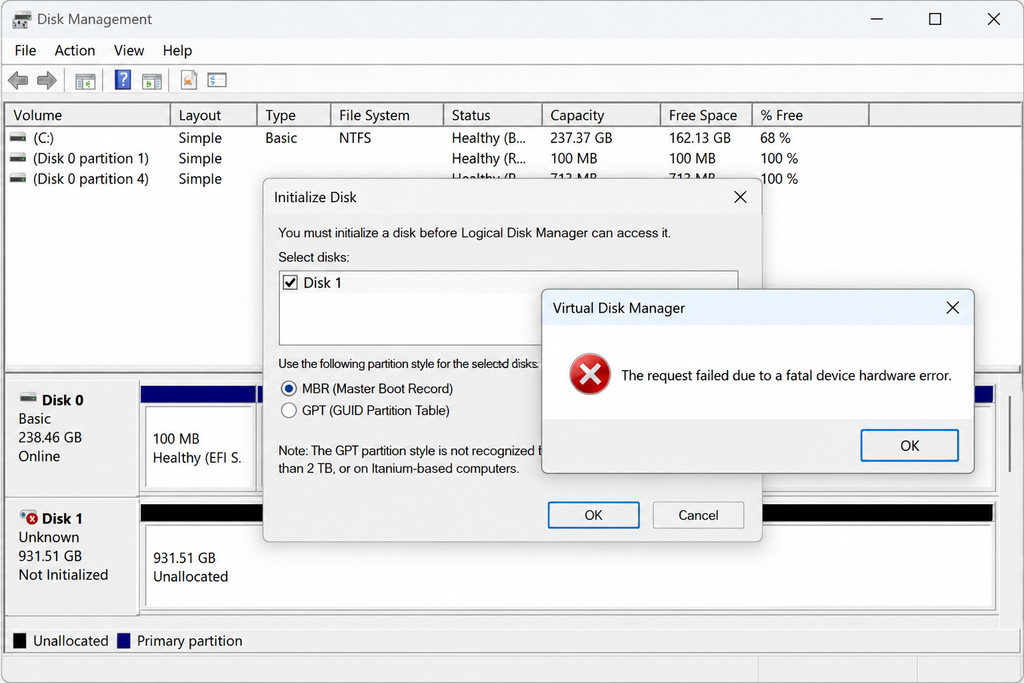
Windows is telling you it detected a serious communication failure between the operating system and the storage device at the hardware level, before it could even begin reading files. That’s why the drive becomes fully inaccessible instead of showing a partial read error or a slow response, the failure happens too early in the process for Windows to negotiate around it.
There’s also a distinct, less-talked-about variant of this same error. If you see “Virtual Disk Manager: The request failed due to a fatal device hardware error,” that’s happening specifically inside Disk Management’s Initialize Disk dialog. It means the drive isn’t responding properly to the initialization request itself, not just to a normal file read, which is a slightly different (and often more serious) signal than the standard version of this error.
Signs you’re dealing with this error
- Files fail to copy, open, or delete from the drive
- The drive shows up as RAW instead of its normal file system
- Disk Management detects the drive but marks it unreadable or “Not Initialized”
- The error repeats every time you try to access or initialize the device
- WD and Seagate external drives often show this alongside error code 0x800701E3
What causes this error
A handful of different problems can trigger this same message:
- A loose, damaged, or poor-quality cable connection, the most common and easiest to rule out
- A faulty or unstable USB port
- Bad sectors on the drive
- File system corruption
- A failing or aging drive nearing mechanical end of life
- An outdated or corrupted disk or storage controller driver
- A missing or conflicting drive letter assignment
- An uninitialized disk with no partition table, common on brand-new or RMA replacement drives
- Insufficient power delivery to a bus-powered external drive, common when it’s connected through an unpowered USB hub
How to fix this error
Method 1 — Check cables and connections
1. Disconnect the device and inspect the cable for any visible damage, bends, or loose ends.
2. Reconnect it to a different USB or SATA port.
3. Try a different cable if you have one available, to rule out a damaged cable specifically.
Method 2 — Try the device on another computer
1. Connect the drive to a different computer if one is available.
2. If it works there, the problem is with your original PC’s ports, drivers, or settings, not the drive.
3. If it still fails on a second computer, the drive itself is the likely cause, move on to the recovery step (Method 11) sooner rather than later.
Method 3 — Restart Windows
1. Disconnect the affected drive first.
2. Restart your computer and let it fully reboot.
3. Reconnect the drive only after Windows has finished starting up. This clears temporary driver or communication glitches without any deeper troubleshooting.
Method 4 — Check drive health with PowerShell
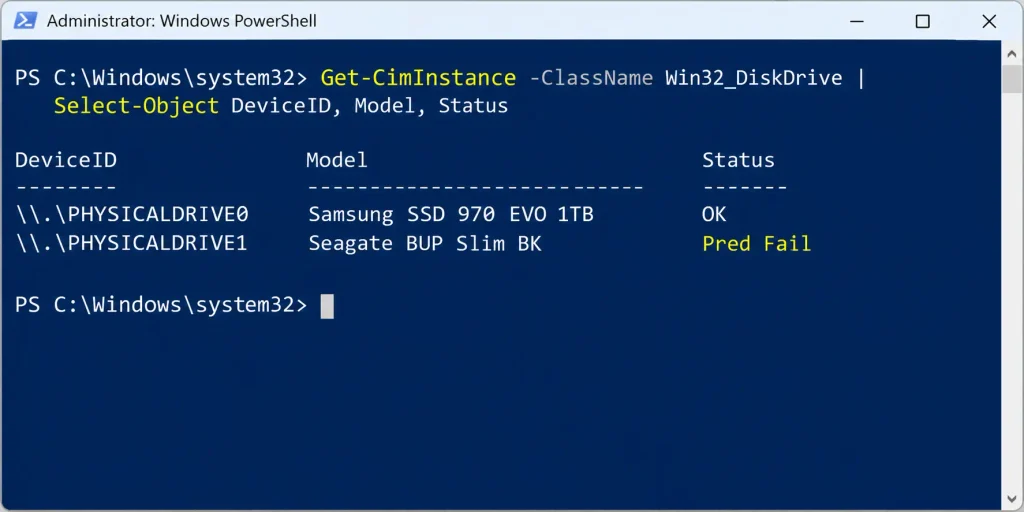
1. Open PowerShell as administrator.
2. Run the following command:
Get-CimInstance -ClassName Win32_DiskDrive | Select-Object DeviceID, Status
This returns “OK,” “Degraded,” or an error status for each connected drive. If it doesn’t say OK, the drive itself likely has a real hardware problem.
If you’ve seen older guides recommend “wmic diskdrive get status” instead, that command no longer works. Microsoft removed the WMIC utility from Windows 11 in the August 2026 update (versions 24H2, 25H2, and 26H1), so the PowerShell command above is the current way to get the same information.
Method 5 — Run Windows error-checking
1. Open File Explorer and right-click the affected drive.
2. Choose Properties, then the Tools tab.
3. Under Error checking, click Check, then Scan drive if prompted.
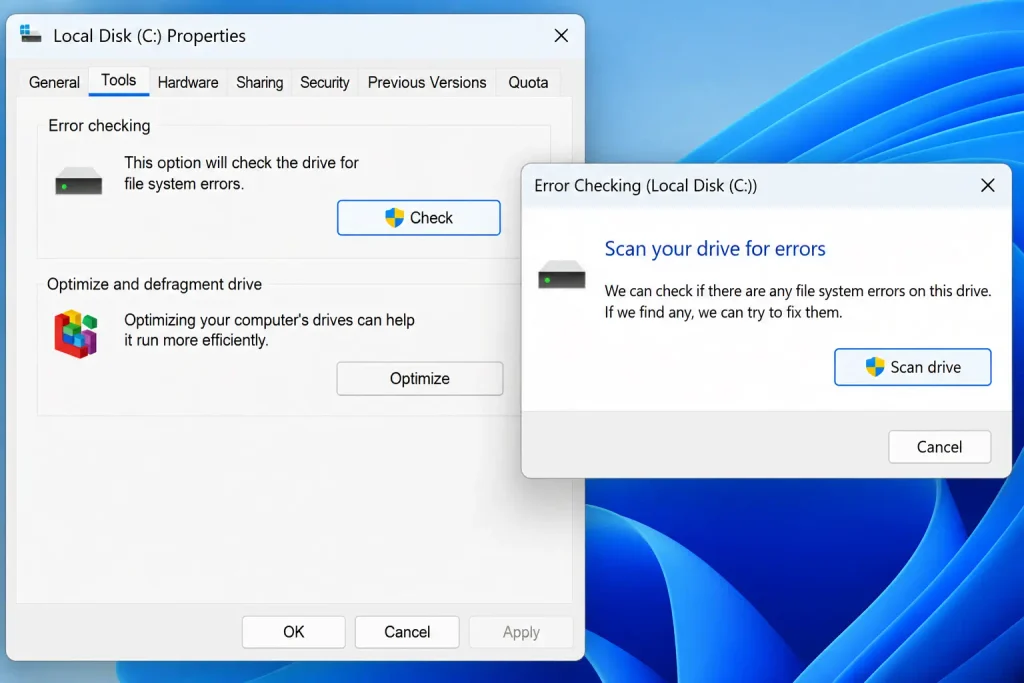
4. Let the scan finish, Windows will report and attempt to fix any errors it finds.
Method 6 — Assign a new drive letter
1. Press Windows + R, type diskmgmt.msc, and press Enter to open Disk Management.
2. Right-click the affected drive’s partition and choose Change Drive Letter and Paths.
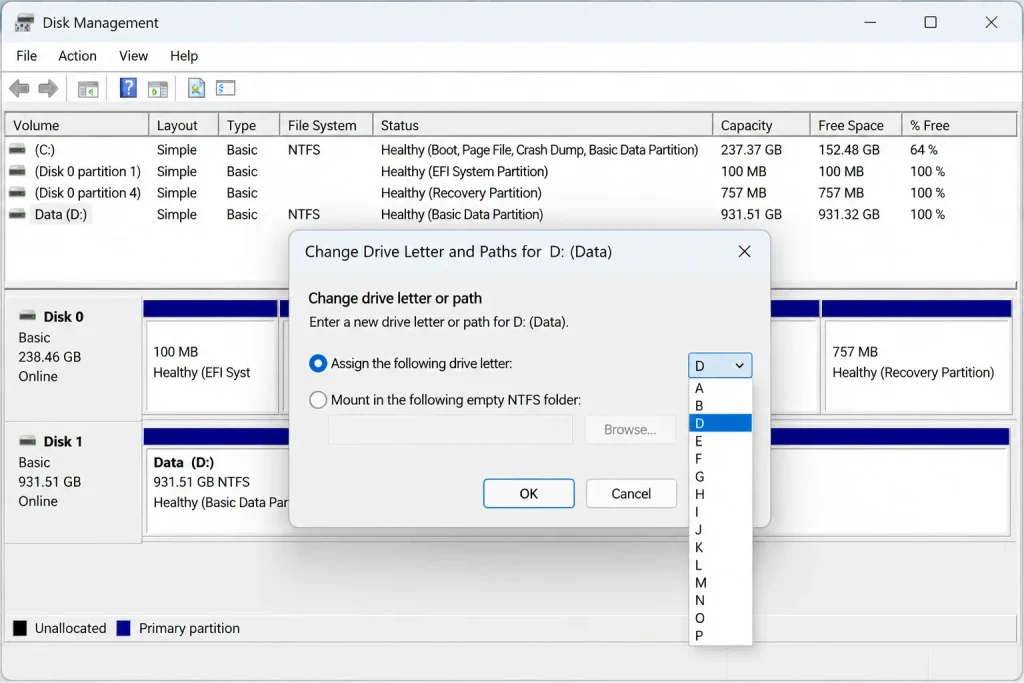
3. Click Change, select a new letter from the dropdown, and confirm.
This resolves cases where Windows can’t properly recognize the drive because of a letter conflict, rather than a hardware issue.
Method 7 — Update or reinstall the disk driver
1. Press Windows + X and select Device Manager.
2. Expand Disk drives (or Universal Serial Bus controllers if it’s a USB device).
3. Right-click the affected device and choose Update driver, then Search automatically for drivers.
4. If that doesn’t help, right-click again and choose Uninstall device, then restart your computer to let Windows reinstall it fresh.
Method 8 — Run CHKDSK
1. Open an administrator Command Prompt.
2. Run the following, replacing X with the affected drive’s letter:
chkdsk X: /f /r
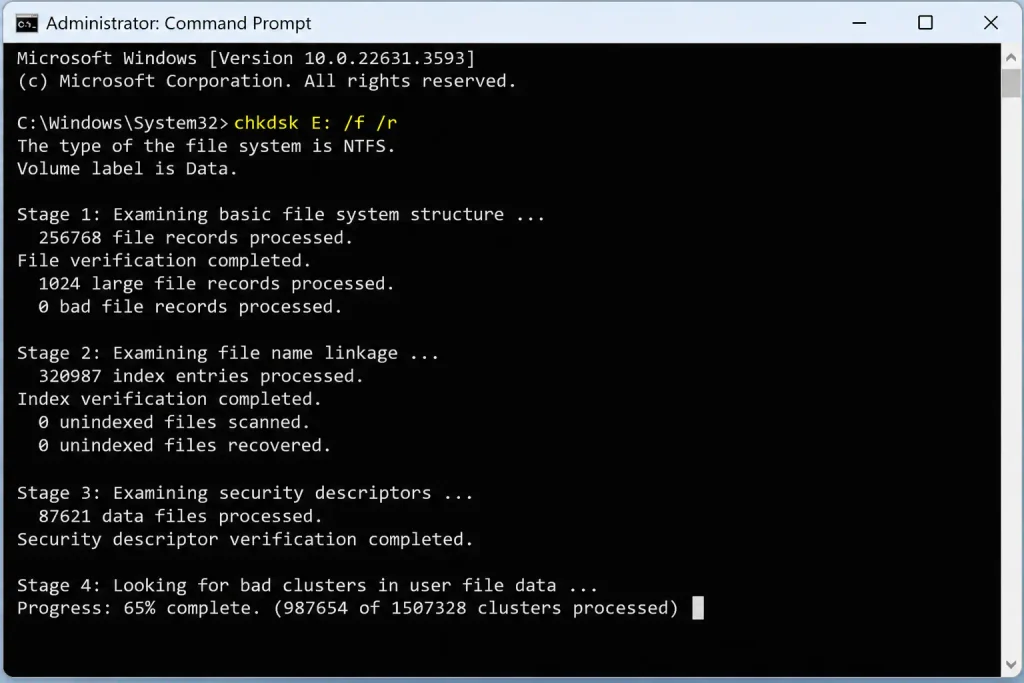
The /f parameter fixes file system errors, and /r locates bad sectors and attempts to recover readable information from them before those sectors are marked unusable.
Method 9 — Initialize the disk
1. Open Disk Management and locate the drive, it will show as Not Initialized.
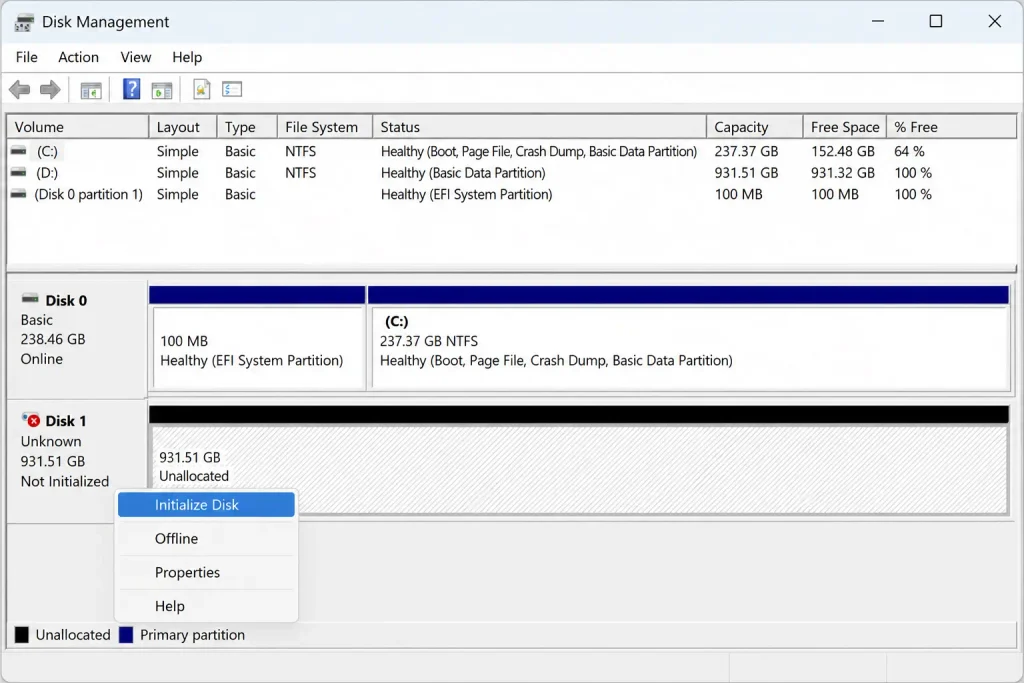
2. Right-click it and choose Initialize Disk.
3. Choose MBR for older devices or drives under 2TB, GPT for newer systems and larger drives.
If the “Virtual Disk Manager” version of this error appears specifically during this step, that itself is a signal the drive isn’t responding at the hardware level. If you have important data on the drive, recovering it first (Method 11) is safer than repeating this step, which can make an already-struggling drive less responsive.
Method 10 — Format the drive (last resort)
1. Right-click the drive and select Format.
2. Choose NTFS for Windows-only use, or exFAT if you need cross-platform compatibility.
3. Start the format and wait for it to complete.
This erases everything on the drive, so only do this after you’ve backed up or recovered whatever data you can.
Method 11 — Recover data with dedicated software
If the drive still won’t respond to any of the above, or you need the data back before risking a step like Initialize or Format, Stellar Data Recovery Professional is built to retrieve files from drives in exactly this state, including cases where Windows can no longer read the drive normally.
Which fix should you try first?
If you’re not sure where to start, match your situation to the list below:
- The drive isn’t detected at all, or was working fine yesterday → Method 1 (cables), then Method 3 (restart)
- The drive works on another PC but not yours → Method 7 (driver update)
- The error appears specifically while trying to Initialize → read the Virtual Disk Manager note under Method 9 before proceeding
- The drive is detected but shows RAW or won’t open → Method 5, then Method 8 (CHKDSK)
- You need the data back and can’t risk Initialize or Format → Method 11 first
How to prevent this error in the future
- Use a powered USB hub for bus-powered external drives, rather than daisy-chaining through an unpowered one
- Eject drives properly through Windows before disconnecting them
- Keep storage and chipset drivers updated rather than waiting for a failure to prompt it
- Avoid moving or bumping external drives while they’re actively reading or writing
- Keep a second backup of anything stored solely on one external drive
Frequently asked questions
What does “Virtual Disk Manager: the request failed due to a fatal device hardware error” mean?
It’s the same underlying error, but triggered specifically inside the Initialize Disk dialog rather than during normal file access. It points to the drive not responding to Windows at the hardware level.
Does this always mean my drive is physically damaged?
Not always. It’s often fixable, cable issues, driver problems, and drive letter conflicts are all common, recoverable causes. But a genuinely failing drive is one real possibility among several, which is why testing on another computer (Method 2) is worth doing early.
What does error code 0x800701E3 mean?
It’s the same error, just with its numeric code attached. It shows up especially often on WD and Seagate external drives alongside this exact message.
Can I still recover my data if the drive won’t initialize?
Yes. Initializing a drive doesn’t require it to be readable in the normal sense, but if you’re worried about losing data, recover what you can (Method 11) before initializing or formatting.
Why does this happen on one computer but not another?
Usually a driver, port, or power-related cause specific to that machine, rather than the drive being universally broken. Testing the drive on a second computer (Method 2) is the fastest way to tell.
Is this different for SSDs versus traditional hard drives?
The error and its causes are broadly the same across both. Power delivery issues are somewhat more common with bus-powered external SSDs specifically, but the troubleshooting steps don’t change based on drive type.
Final thoughts
This error is unsettling because it makes a drive fully inaccessible rather than showing a partial problem, but it’s often resolved with the basic checks above, a cable swap, a restart, or a drive letter fix account for a large share of cases. If you’ve worked through the methods here and the drive still won’t respond, or you’d rather not risk Initialize or Format on a drive with important data, Stellar Data Recovery Professional is built to recover files from drives in exactly this state.
For related storage errors, see our guides on DiskPart Has Encountered an Error and common hard disk error codes.


