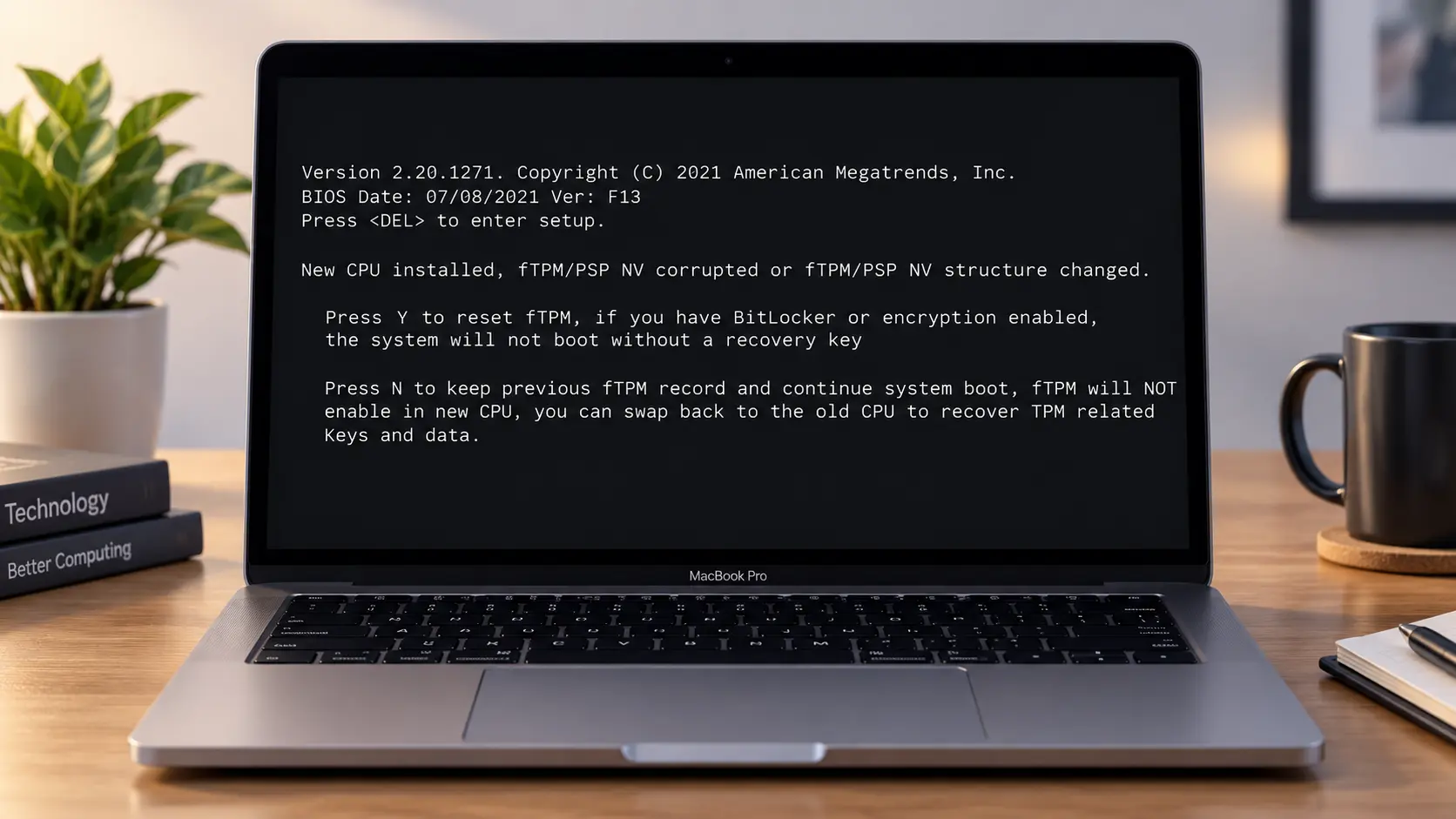

If you’re staring at this message on a black screen and don’t know whether pressing Y or N will save or destroy your data, this guide gives you the direct answer first, then the full explanation. The error appears exclusively on AMD-based systems and is caused by a mismatch between the CPU’s identity signature and the stored fTPM non-volatile data, not a sign of hardware failure.
| Quick answer: what should I press right now? Your situation Press What happens No BitLocker, no drive encryption Y fTPM resets, Windows boots normally. Safe. BitLocker enabled or not sure N Boot into Windows first, check BitLocker status, then restart and decide. Brand new PC, no OS installed yet Y fTPM NV has no prior state. This is a false alarm. Press Y and continue installation. If you pressed Y and nothing happened, or your keyboard seems unresponsive, see the Y key not working section below. |
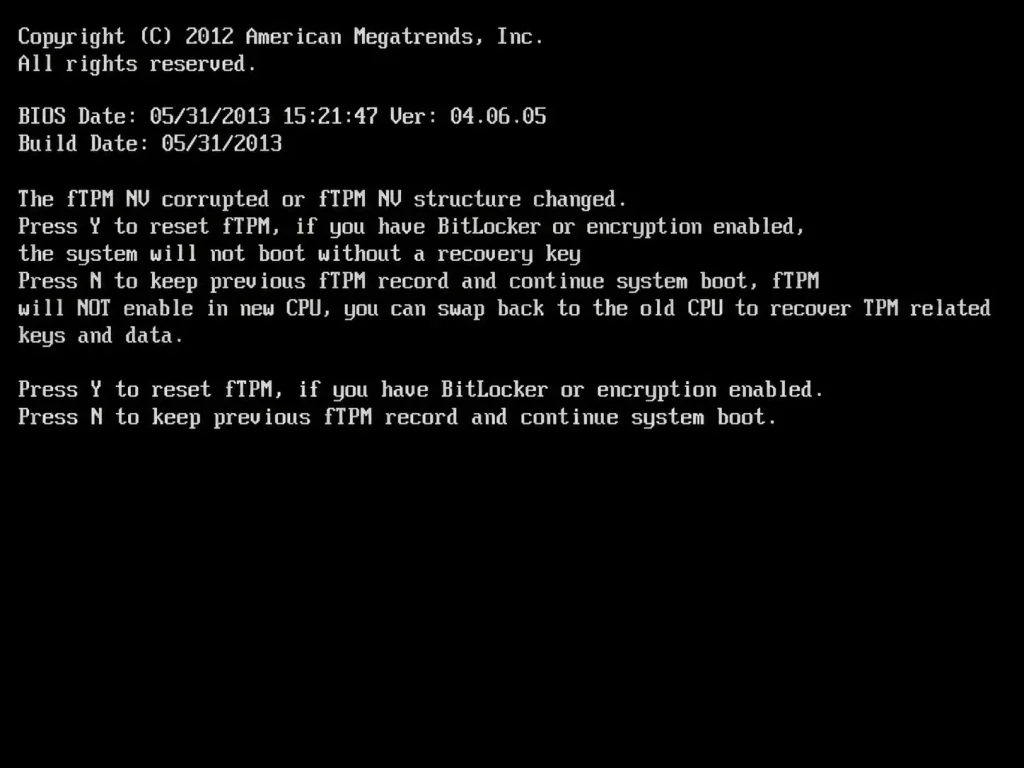
What is fTPM and why does this message appear?
fTPM (firmware Trusted Platform Module) is AMD’s software-based implementation of a TPM, built directly into the Platform Security Processor (PSP) inside AMD CPUs, rather than sitting on a separate chip on the motherboard. It stores cryptographic keys used by BitLocker drive encryption, Windows Hello, and other security features tied to a specific device identity.
When something changes the CPU’s identity signature, the fTPM’s non-volatile storage (NV) gets flagged as mismatched or corrupted. The BIOS detects this mismatch at boot and shows the prompt rather than silently overwriting the stored keys, since overwriting them without warning could lock you out of an encrypted drive.
This error is AMD-specific. Intel processors use PTT (Platform Trust Technology) instead of fTPM/PSP. If you have an Intel system and are seeing something similar, the cause and fix path are different. The guidance on this page applies to AMD CPUs only.
Which scenario are you in? Find your trigger first
The fix path differs significantly depending on what triggered the message. Identifying your scenario before pressing anything is the most important step, and it’s what no competing guide does upfront.
| What triggered the message | Why it happens | Recommended first press |
| Installed a new AMD CPU | New CPU has a different PSP identity. fTPM NV is now mismatched with the stored keys. | Y (if no BitLocker) / N first (if BitLocker) |
| Updated BIOS firmware | Some BIOS updates reset or alter fTPM NV storage as a side effect. | Same as above |
| Changed RAM speed or XMP/EXPO profile | Voltage or timing changes can glitch CMOS, which can corrupt fTPM NV. | N first, check BitLocker, then Y if clear |
| No hardware changed at all | Rare spontaneous corruption from a power event, firmware instability, or background update. | N first — check BitLocker status before resetting fTPM |
| Brand new build, no OS installed yet | fTPM NV has no prior state to corrupt. Message is a false alarm. | Y — then disable fTPM in BIOS to prevent recurrence |
Important note on PartitionWizard’s cause list: The competing page at partitionwizard.com states the “actual reason for the error is still not confirmed” and lists “unknown factors” as a cause. This is not accurate. The primary cause is well understood: fTPM NV stores a hardware-bound key derived from the CPU’s PSP identity. Any change to that identity, whether from a CPU swap, BIOS update, or CMOS glitch, breaks the stored key-match and triggers this prompt. The uncertainty in forum threads comes from users not recognising which trigger applies to their situation, not from the mechanism being genuinely unknown.
Fix path A: BitLocker not enabled — press Y
If you know for certain that BitLocker is not enabled on your system, pressing Y is safe. The fTPM resets, the old mismatched key is discarded, and Windows boots normally. No data is deleted.
How to verify BitLocker is off before pressing Y
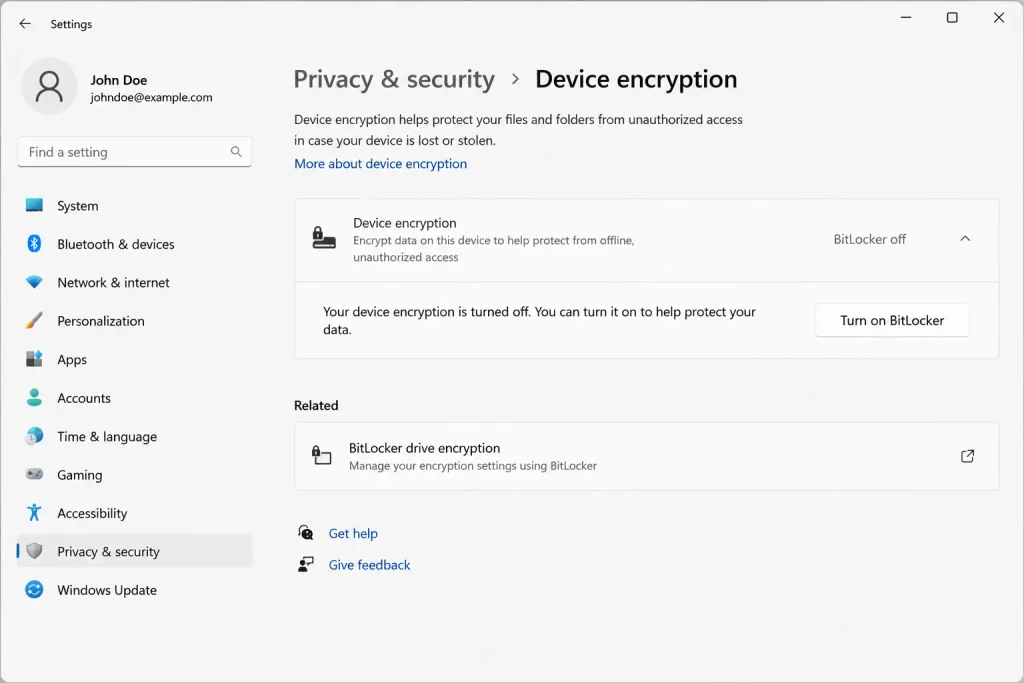
If you pressed N and successfully got into Windows, open Command Prompt as Administrator and run:
manage-bde -status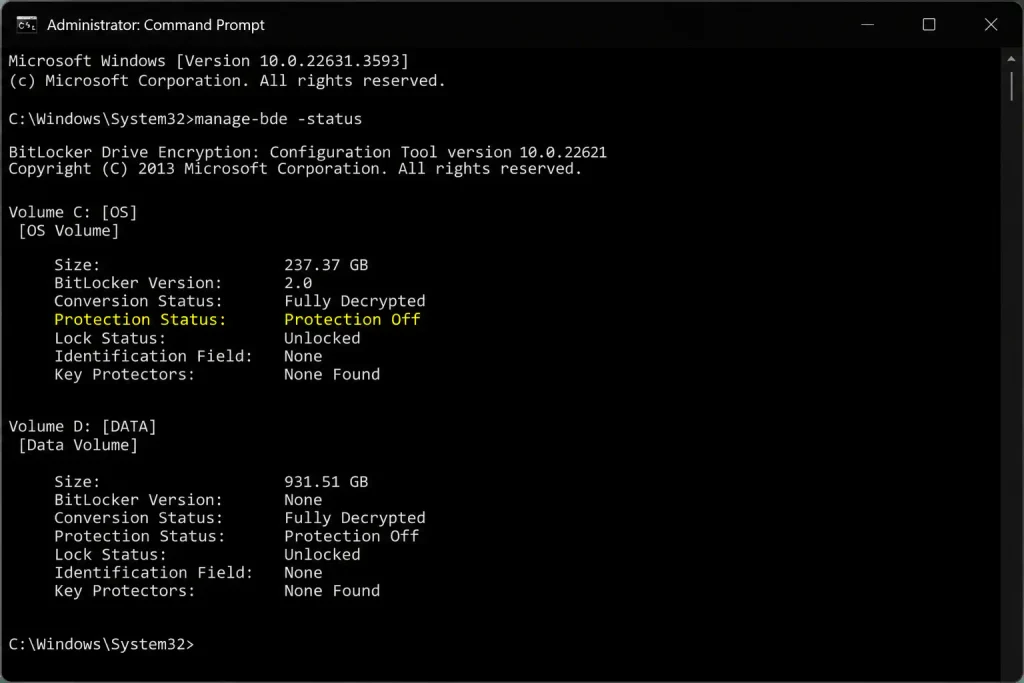
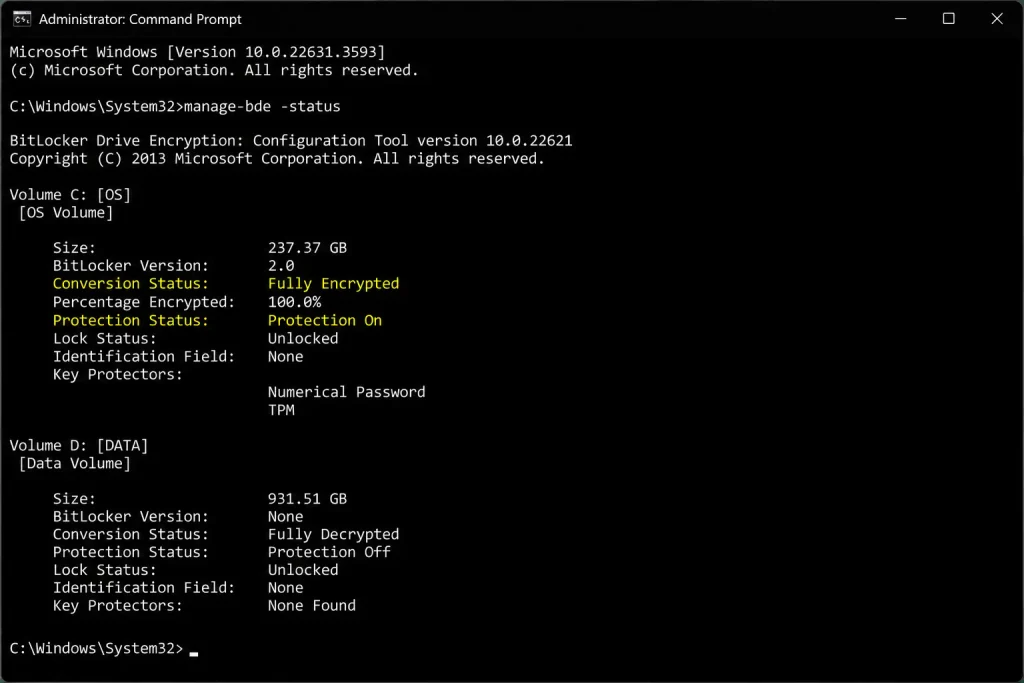
Check the Protection Status line. If it shows Protection Off and Lock Status: Unlocked, BitLocker is not active. Restart your PC and press Y at the prompt.
After pressing Y: prevent the message from reappearing
Once in Windows, disable fTPM in BIOS. The message will otherwise return the next time a BIOS update or hardware change occurs. BIOS navigation paths by manufacturer:
| Motherboard brand | BIOS path to disable fTPM |
| Asus | Advanced > AMD fTPM configuration > AMD CPU fTPM > Set to Discrete TPM |
| Gigabyte | Settings > Miscellaneous > AMD CPU fTPM > Disabled |
| MSI | Advanced > Trusted Computing > Security Device Support > Disable |
| ASRock | Advanced > CPU Configuration > AMD fTPM Switch > Disable |
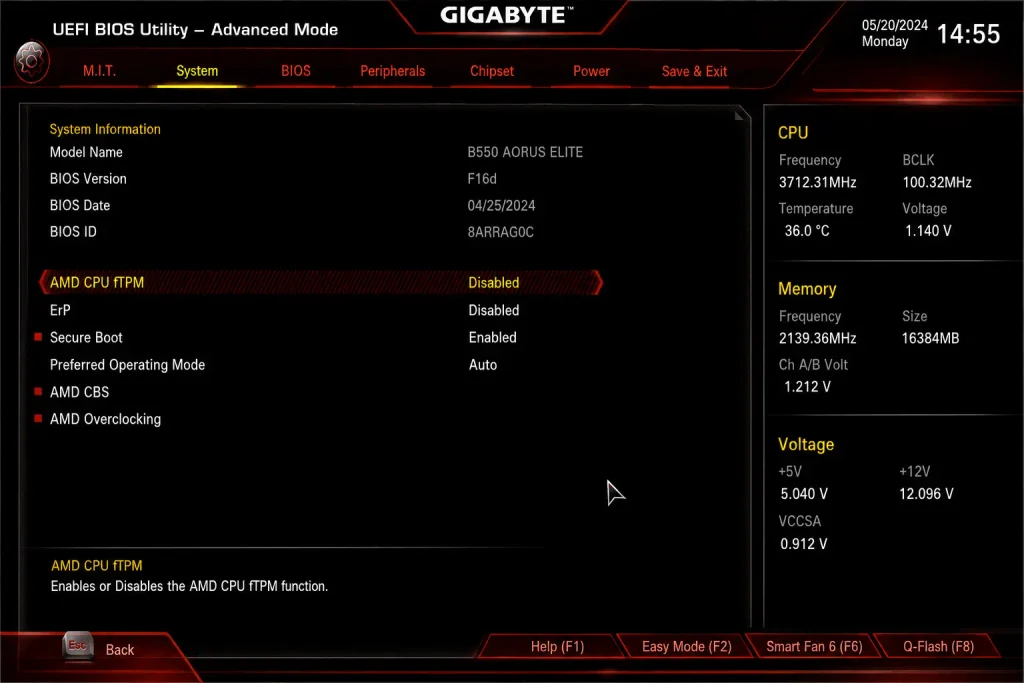
Note: disabling fTPM means Windows Hello PIN and BitLocker will rely on a discrete TPM chip or will need to be reconfigured. If you plan to use BitLocker, add a discrete TPM module rather than disabling fTPM entirely.
Fix path B: BitLocker is or might be enabled — do this first
Pressing Y when BitLocker is active resets the fTPM keys that BitLocker uses to decrypt the drive. If you don’t have the BitLocker recovery key available, this locks you out of your own data. Always press N first if you’re unsure.
Part 1: You can still log into Windows
Press N at the prompt to boot into Windows.
- Run manage-bde -status and check the Protection Status.
- If Protection is OFF: restart, press Y, done.
- If Protection is ON: run manage-bde C: -off to decrypt the drive. Replace C: with the correct drive letter if your OS is on a different drive
Part 2: You cannot log in or Windows won’t boot
You need the BitLocker recovery key before continuing. Find it in one of these places:
- Microsoft Account: sign in from another device at onedrive.live.com/recoverykey.
- Azure Active Directory: for work or school accounts at portal.azure.com.
- Printout or USB drive: saved when BitLocker was first enabled on this system.
With the recovery key in hand, enter Windows Recovery Environment (WinRE):
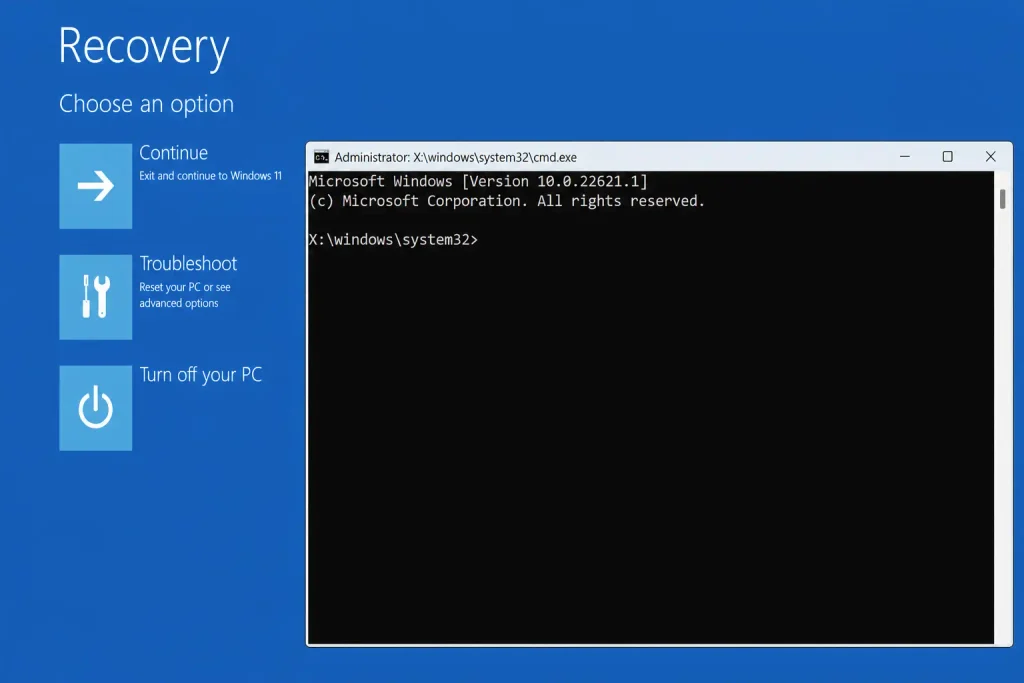
- Click Advanced Options → Troubleshoot → Command Prompt.
- Run manage-bde -status to identify the encrypted drive letter.
- Unlock the drive:
manage-bde -unlock C: –rp YOUR-48-DIGIT-RECOVERY-KEY. Replace C:
- Unlock the drive:
- Decrypt the drive: manage-bde -off C:
If BitLocker is enabled on more than one drive: repeat the unlock and decrypt commands for each encrypted drive before restarting.
Y key not responding? Here’s why
Several forum threads document cases where users press Y repeatedly and nothing happens. Two distinct causes, and zero editorial pages cover either of them:
Cause 1: European keyboard layout (Y and Z are swapped)
On German, Austrian, and Swiss keyboard layouts, the Y and Z keys are physically swapped. If your keyboard uses a German or Central European layout, the key labelled Y on the keyboard sends the Z character to the BIOS, and vice versa. Press the key physically labelled Z on your keyboard, which sends the Y character the BIOS expects. This is the most common reason for the Y key appearing unresponsive at this specific prompt.
Cause 2: Keyboard not initialised in the pre-boot environment
- Try a different USB port, specifically one of the rear USB-A ports directly on the motherboard I/O panel rather than a front-panel header port.
- If available, try a PS/2 keyboard, which is always active before USB initialises.
- Check BIOS settings (if accessible from a previous boot) for Legacy USB Support or USB Keyboard Support under the Advanced tab — ensure this is Enabled.
Pressed Y, but TPM is no longer showing in Device Manager
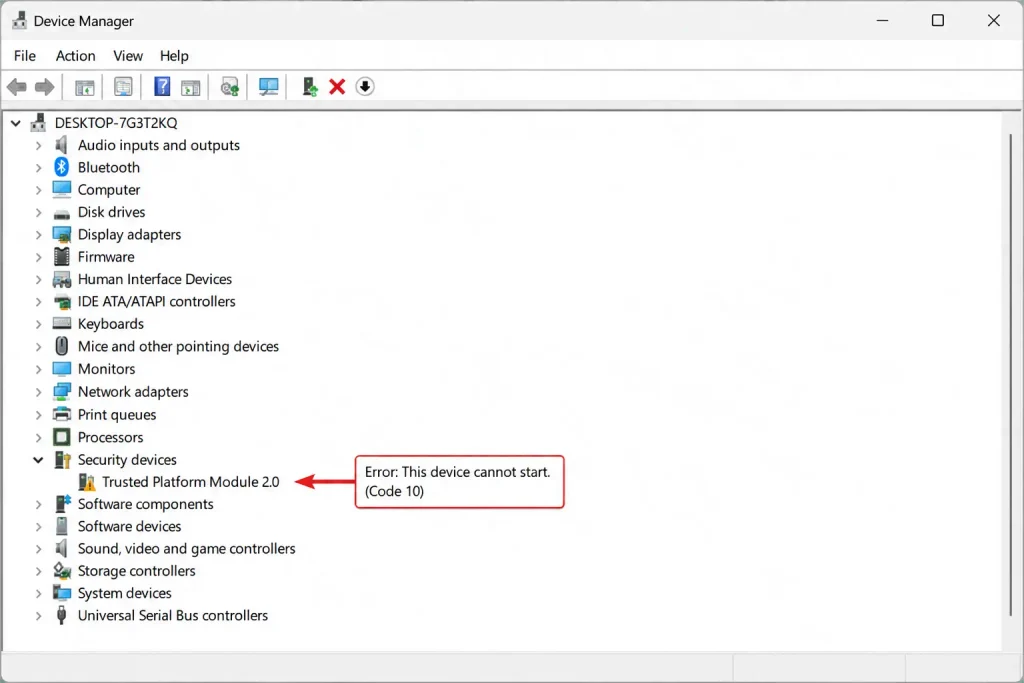
If after pressing Y and booting into Windows, you open tpm.msc or Device Manager and the Trusted Platform Module 2.0 entry is missing or the TPM management console shows no compatible TPM, the fTPM NV is permanently corrupted rather than just flagged as mismatched. This is distinct from the standard prompt scenario and requires a different fix sequence.
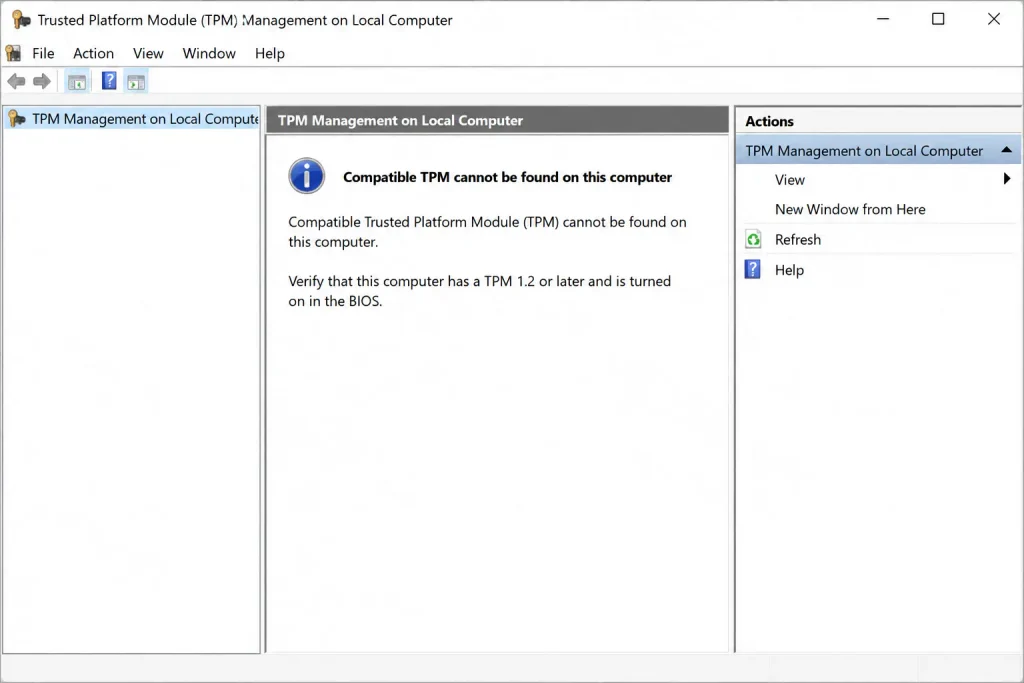
What not to do: Partition Wizard’s guide lists “wipe the hard drive and reinstall Windows” as the sixth fix for this error. This is an extreme and unnecessary recommendation. The fTPM NV corrupted message is a BIOS-level key mismatch, not a Windows installation problem. Reinstalling Windows does not fix a corrupted fTPM NV state — the same BIOS-level condition will persist after reinstallation. Do not wipe your drive for this error.
Frequently asked questions
Is it safe to press Y?
Yes, if BitLocker is not enabled on your system. Pressing Y resets the fTPM NV storage, discards the mismatched key, and boots Windows normally. No files are deleted. If BitLocker is or might be enabled, press N first and check your BitLocker status before deciding.
What happens if I press N?
Pressing N keeps the previous fTPM record and attempts to continue booting. Windows may or may not boot successfully depending on whether BitLocker is active and whether the stored key still works. If Windows boots, you can check your BitLocker status and then make an informed decision.
Why am I seeing this when I didn’t install a new CPU?
The message can appear after a BIOS update, an XMP/EXPO RAM profile change, a power outage, or spontaneous CMOS corruption. The title of the message is misleading. It says ‘New CPU installed’ because that is the most common trigger, not the only one.
Does pressing Y delete my data?
No, pressing Y does not delete any files. It resets the fTPM cryptographic keys. The only risk is if BitLocker is enabled: pressing Y without the recovery key available makes an encrypted drive inaccessible because the key used to decrypt it is reset. Your files are still physically on the drive, but the decryption key is gone. This is why you check BitLocker status before pressing Y.
Is this error AMD-specific?
Yes. fTPM and PSP are AMD-specific technologies. Intel CPUs use PTT (Platform Trust Technology) instead. The specific prompt described here only appears on AMD-based systems.
How do I stop this message from appearing again?
Disable fTPM in BIOS using the manufacturer-specific path in the table above. If you rely on BitLocker, install a discrete TPM 2.0 module on the motherboard header before disabling fTPM, so encryption remains functional.
Can I fix this without the BitLocker recovery key?
If BitLocker is active and you do not have the recovery key, you cannot decrypt the drive after pressing Y. The key is either saved to your Microsoft Account (check onedrive.live.com/recoverykey), backed up to a USB drive, printed out, or stored in Azure AD for work accounts. If none of these apply, the encrypted data is not recoverable after pressing Y.