
| Tool | Best for | Free tier | File size limit | CLI / batch | Preview before save |
| ScanPST.exe | Minor header errors | Yes, built-in | ANSI 2GB (Outlook 2002 and earlier); Unicode up to 50GB (Outlook 2010+) | -force/-silent/-rescan/-norepair, Outlook 2016 v1807+ only; reported non-functional again in 2019/2021 | No |
| Stellar Repair for Outlook | Severe corruption, large PST, migrations | Demo, preview only | No hard cap, vendor-stated | No CLI in any edition, including Technician | Yes |
| Kernel for Outlook PST Repair | Encrypted PST, wide export targets | Demo, 25 items/folder | No hard cap, vendor-stated | GUI multi-select batch only; no documented CLI found | Yes |
| DataNumen Outlook Repair | Scripted/unattended batch jobs | Demo, ~10% recovery per vendor | Recovers oversized PSTs; no hard cap | Vendor-confirmed command-line parameters plus batch repair | No, standard tier |
| SysTools Outlook Recovery | Office 365-linked migrations, deep preview | Demo, preview only | Split output 100MB–200GB | GUI multi-select batch only; no documented CLI found | Yes |
When ScanPST isn’t enough — the IT admin’s problem
A PST repair tool diagnoses, repairs, or recovers data from a corrupted or inaccessible Outlook PST (Personal Storage Table) file. PST files store email, calendar items, contacts, and tasks locally on a user’s machine, so when the file corrupts, everything in it becomes inaccessible at once.
For a single user, ScanPST.exe — Microsoft’s Inbox Repair Tool, built into every Outlook installation — handles minor corruption well. For an IT environment managing many mailboxes, it falls short in predictable ways:
- It has no reliable, version-independent command-line interface for scripted, unattended jobs (see the CLI section below for exactly what does and doesn’t work).
- It can’t process multiple PST files in one pass — each file is a separate manual run.
- Performance degrades as file size grows; Microsoft’s own guidance recommends having free disk space equal to at least double the file size before running it.
- It primarily repairs PST structural integrity — header, folder structure, and internal indexes — rather than performing deep item-level reconstruction, so severely damaged files often come back with entire items missing rather than recovered.
- It produces no structured, exportable item-level recovery report — only a basic scan log.
A cause worth calling out explicitly because almost nobody documents it: real-time antivirus or EDR software scanning a PST file while Outlook is actively writing to it is a well-known, avoidable trigger for repeat corruption. If a repaired PST keeps corrupting again within days, check whether the PST storage folder is excluded from real-time scanning before assuming the repair tool did a bad job. Excluding the folder via group policy is the durable fix — disabling AV only for the repair session doesn’t address the underlying conflict.
One structural note worth knowing: a PST file is built on a page-based B-tree index. Corruption tends to hit that index and header structure before it touches the actual message content, which is exactly why header-level tools like ScanPST behave differently from tools that do item-level reconstruction — the index can be unreadable while the messages underneath it are still intact.
What separates an IT-grade PST repair tool from a consumer-grade one: reliable batch handling across many files, file-size headroom well above 20GB, licensing that covers a team without per-seat costs at every machine, and recovery depth that goes beyond header fixes.
PST repair decision tree
| Corruption scenario | Try ScanPST first? | Recommended tier |
| Minor header error, file opens but folders missing | Yes | ScanPST may be sufficient |
| Outlook loops “checking for problems” on startup | Yes, once | Third-party if it loops again |
| PST over 20GB with severe corruption | Optional, expect it to be slow | Third-party recommended |
| Virus or malware damage | No | Third-party deep scan |
| PST on a network share or NAS | No, ScanPST needs local access | Copy locally first, then repair |
| Accidentally deleted items still in the PST | Yes | ScanPST, then third-party if items are still missing |
| Exchange decommission, orphaned PST | No | Third-party with Exchange-aware handling |
| Password-protected PST that won’t open | No, ScanPST can’t process encrypted PST | Specialist tool with password support |
| Repeat corruption right after a clean repair | N/A | Check AV/EDR exclusions before re-repairing |
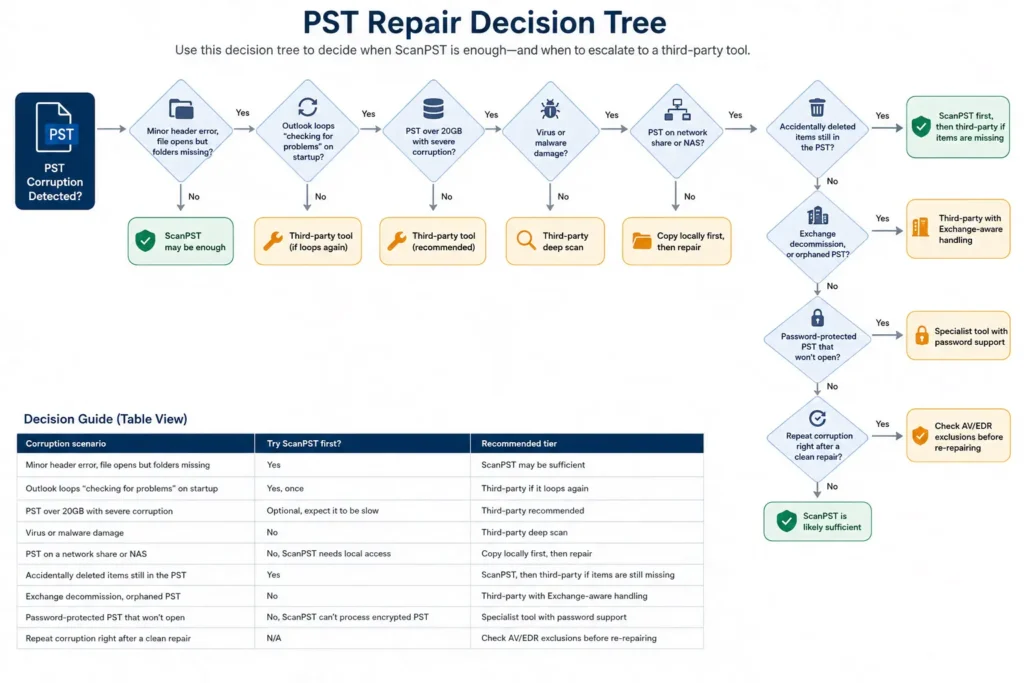
Three-step triage: run ScanPST once — if it completes cleanly and the mailbox opens normally, stop there. If it loops, errors out, or leaves the PST looking emptier than before, move to a third-party tool. For files over 20GB with severe corruption, many admins move directly to a third-party tool rather than waiting out ScanPST at that size.
Common PST error messages, decoded
People searching for a fix rarely type “PST repair tool” first — they paste the exact error text. None of the current top-ranking PST repair guides target these queries directly, which makes this table one of the highest-intent additions on the page.
| Error message | Likely cause | First step |
| “Outlook.pst is not a personal folders file” | File extension or header mismatch, often from an incomplete copy or a renamed file | Confirm the file wasn’t renamed from another format; try a backup copy before running ScanPST |
| “Cannot start Microsoft Outlook. Cannot open the Outlook window” | Corrupt Outlook profile, or a corrupt PST referenced by that profile | Create a new profile pointing at the same PST; run ScanPST if the error persists |
| Outlook data file cannot be accessed (commonly reported alongside code 0x8004010F) | PST path unreachable — a disconnected network drive, a moved file, or a missing file at the expected path | Verify the file still exists at its last known path; reconnect network drives before repairing |
| Repeated “check for problems” prompt on every Outlook launch | Deeper structural corruption a single ScanPST pass isn’t resolving | Use ScanPST’s multi-pass mode where available (Outlook 2016 v1807 and later), or move to a third-party tool |
| Corruption returns days after a clean repair | Real-time AV/EDR scanning the PST during active writes, or the file living on a network share | Exclude the PST folder from real-time AV/EDR scanning; move the file to local storage |
Note: The 0x8004010F association is widely reported across IT forums and vendor troubleshooting pages rather than published by Microsoft as a single canonical list — treat it as a strong first lead, not a guaranteed diagnosis, and confirm against the specific error dialog text in front of you.
The top PST repair tools for IT professionals — reviewed
Every technical claim below was checked against the vendor’s own product page, official knowledge base, or — for Microsoft’s tool — support.microsoft.com and Microsoft’s own support forum. Where a claim is vendor-stated and not independently auditable from the outside, it’s labeled that way.
1. ScanPST.exe (Microsoft Inbox Repair Tool) — the baseline
Recovery depth: primarily PST structural integrity — header, folder structure, and internal indexes — rather than deep item-level reconstruction.
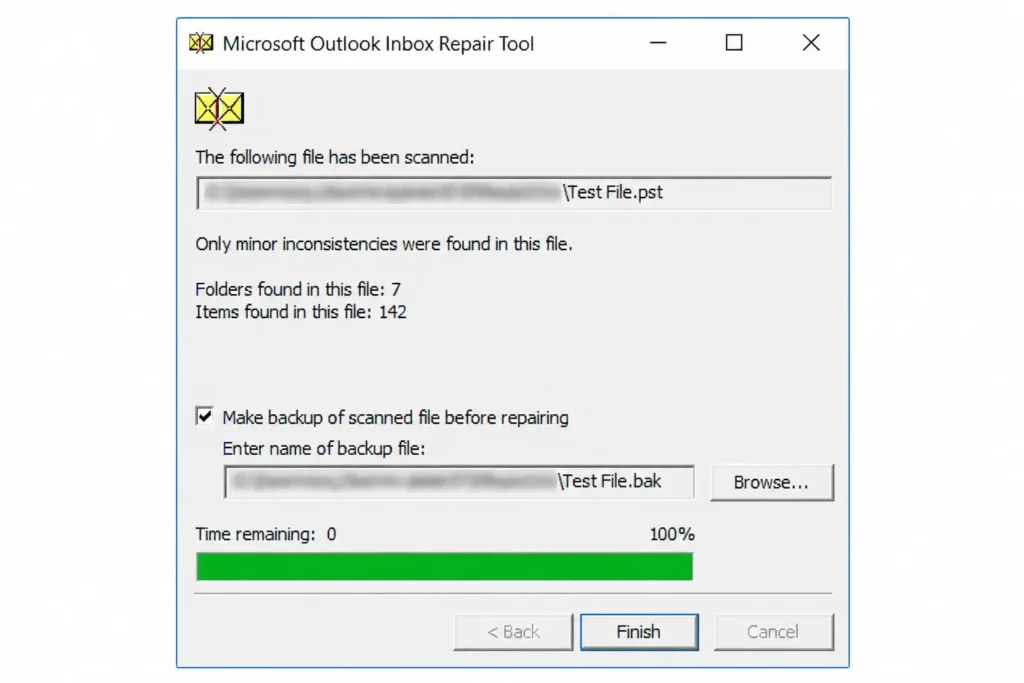
Per Microsoft’s own documentation, ScanPST examines every folder in the PST, checks each row in each table against the actual message or subfolder it should point to, and removes rows it can’t match. If a block of the structure is unreadable, ScanPST removes it — and if that block belonged to a specific item, the item is removed too. It creates an automatic backup (.bak file, same name, same folder) before repairing, and Microsoft’s own guidance notes you may need to run it multiple times to fully resolve a file.
- Free, built into every Windows Outlook installation — no download required.
- Locations: Outlook 2016/2019/2021/365 → …\Microsoft Office\root\Office16\; Outlook 2013 → …\Office15\; Outlook 2010 → …\Office14\.
- Free disk space needed before running: at least double the size of the PST or OST being scanned.
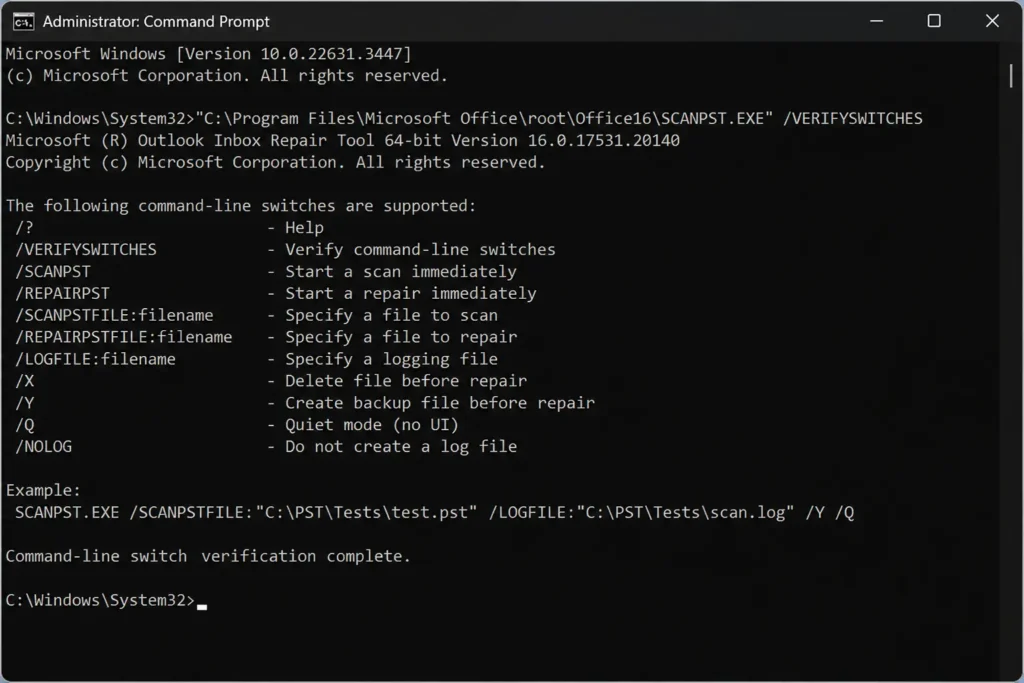
CLI reality check: the real, Microsoft-documented switches are -force -silent -rescan -norepair — and they only work starting with Outlook 2016 build 16.0.10325.20082 (version 1807). Microsoft’s own support forum has threads from Outlook 2019 and 2021 users reporting these switches no longer do anything in those builds, with the tool reverting to GUI-only behavior. Test this directly in your own environment before building a script around it; don’t assume it works the same way across every Outlook version in your fleet.
- Doesn’t support UNC/network paths — the PST has to be local or on a mapped drive.
Honest limitation: no item-level recovery, unreliable CLI support across versions, and no structured recovery report — you get a pass/fail plus a basic log.
2. Stellar Repair for Outlook
Recovery depth: item-level reconstruction, not just header repair.
Per Stellar’s official product page, this performs item-level rebuilding of emails, attachments, calendar entries, and contacts rather than patching only the header structure, and lets you preview the recovered folder structure before committing to a save — useful for confirming what survived before handing a mailbox back to a user.
- Technician edition adds direct export to Microsoft 365 or Live Exchange, plus PST split and compact.
Licensing correction worth knowing before you buy: Stellar’s own knowledge base states the Technician and Toolkit licenses can be installed and used on up to 3 different systems simultaneously — not an unlimited number of client machines. Fine for a solo consultant or small IT team; a real ceiling for a larger MSP that needs to plan seat count accordingly.
- No command-line interface in any edition, including Technician — nothing in Stellar’s official materials indicates CLI support.
- Save formats with an active license: PST, MSG, EML, RTF, HTML, and PDF.
- Free tier: demo scans and previews but saves only a limited number of items.
Honest limitation: no CLI for scripted jobs at any tier, and the Technician license’s 3-system cap needs to be budgeted for explicitly if you’re scaling past a small team.
3. Kernel for Outlook PST Repair (KernelApps / Nucleus Technologies)
Recovery depth: item-level, including permanently deleted items and password-protected PST.
CLI correction: Kernel’s own product documentation describes batch repair as selecting multiple PST files at once through the GUI’s Browse dialog. A search of Nucleus Technologies’ official knowledge base and product pages found no published command-line reference or scriptable parameter list. If a CLI mode exists, it isn’t part of the public product literature — confirm directly with the vendor before promising a client scripted, unattended batch jobs with this tool.
- Exports to an unusually wide range of destinations for this category: Microsoft 365, Exchange Server, GroupWise, IBM Domino (Lotus Domino), and web mail including Gmail, Yahoo, AOL, and iCloud.
- Recovers password-protected PST files, both compressible and high encryption, per the vendor’s own spec sheet.
- Free demo saves the first 25 items from each folder — a specific, checkable limit rather than a vague “limited preview.”
- Per-machine licensing; no published technician or site-license tier found on current official pricing pages.
Honest limitation: batch is GUI-driven rather than confirmed-scriptable, and per-machine licensing gets expensive fast across a larger fleet.
4. DataNumen Outlook Repair
Recovery depth: item-level, with the deepest confirmed automation support of the five tools here.
This is the one tool in the set with genuinely vendor-confirmed CLI support: DataNumen’s own published feature list names “support to repair a batch of PST files” and “support command line parameters” as two separate, distinct capabilities — meaning the batch handling and the scripting interface are both real, not just a multi-select dialog.
- Recovers oversized PST files and converts between the old ANSI (Outlook 97–2002) and Unicode (Outlook 2003 and later) formats in either direction.
- Recovers password-protected PST, including both compressible and high/best encryption.
- Windows Explorer context-menu integration for one-off repairs outside the main UI.
- Free tier: demo recovers roughly 10% of recoverable items, per the vendor — enough to confirm a file is recoverable before buying, not enough for production use.
Honest limitation: no preview before save in the standard tier, and the interface reads as dated next to Stellar or Kernel — but for a team that actually needs unattended, scripted repair across many machines, it’s the most credibly automatable option here.
5. SysTools Outlook Recovery
Naming correction: the vendor is SysTools (SysTools Group, systoolsgroup.com) — not “Sysools.” Their product page lists this as an item-level recovery tool with an unusually deep preview feature: 8 separate preview modes (Normal Mail, Hex, Properties, MIME, HTML, RTF, Attachment, and Message Header views), which goes further than most competitors in letting you inspect exactly what a recovered item looked like before committing to a save.
- Splits the output PST by size, from 100MB up to 200GB per file, per the official product page.
- Exports directly to Microsoft 365 — to a user mailbox, an admin mailbox, or a shared mailbox with impersonation support.
- Decrypts SMIME and OpenPGP-encrypted messages during recovery.
Correction on the OST claim: SysTools sells PST recovery and OST recovery as two separately named products, not one unified tool that handles both formats. For an Exchange decommission project that genuinely needs both PST and OST recovery in one engagement, budget for both products, or confirm current bundling directly with SysTools before scoping a client project around a single-tool assumption.
- Batch repair is GUI multi-select, like Kernel and Stellar — no documented CLI found.
- Per-machine licensing; no published site or technician tier found in current editions.
Honest limitation: the OST-in-one-tool positioning from earlier competitive research doesn’t hold up against the vendor’s own current product lineup — verify exactly which SKU a client needs before quoting.
Automating PST repair with command-line tools — corrected
Batch corruption — a group policy rollout that touches 200 machines, a RAID rebuild that partially damages NAS-hosted PSTs, an Exchange decommission that leaves hundreds of disconnected OST files — makes manual, one-file-at-a-time repair impractical. Here’s what’s actually scriptable across this list, based on official documentation rather than marketing copy.
ScanPST — what actually works
Verified switches: -force -silent -rescan -norepair. Example:
“C:\Program Files (x86)\Microsoft Office\root\Office16\SCANPST.EXE” -silent -force -rescan “C:\Users\username\AppData\Local\Microsoft\Outlook\outlook.pst”
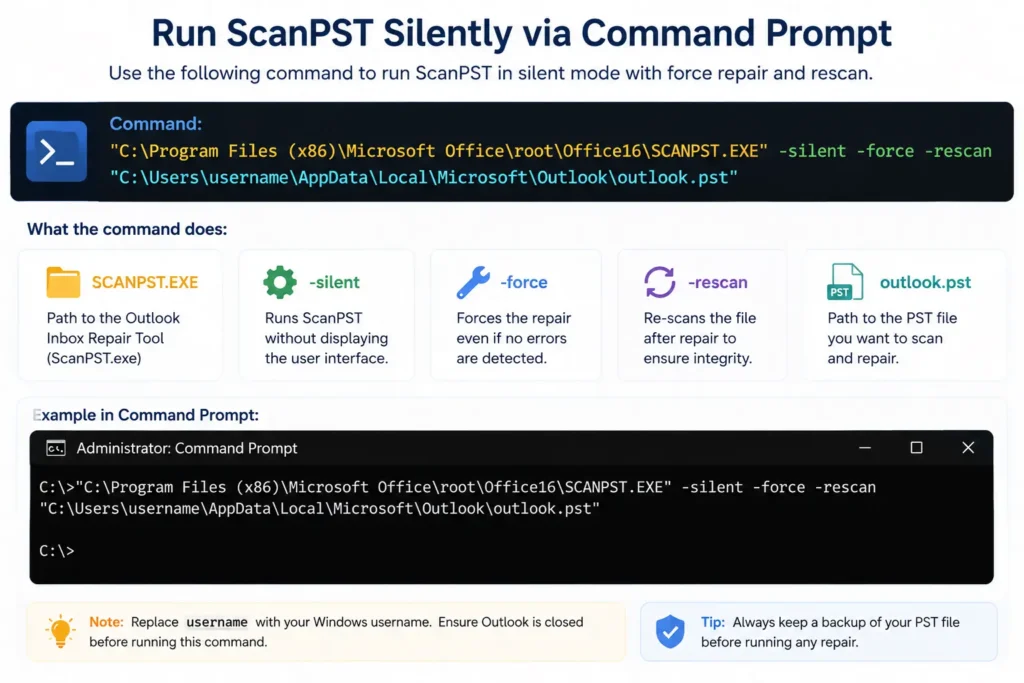
Caution: These switches are documented by Microsoft for Outlook 2016 build 16.0.10325.20082 (v1807) and later, but multiple reports on Microsoft’s own support forum say they stopped working again in Outlook 2019 and 2021, with the tool falling back to requiring manual GUI interaction. Verify actual behavior on your target Outlook build before relying on this for unattended jobs — don’t copy this command into a production script without testing it first.
Third-party CLI — only one confirmed option
Of the four third-party tools reviewed here, only DataNumen Outlook Repair has vendor-published command-line parameter support alongside true batch repair. Kernel, Stellar, and SysTools all describe “batch” as selecting multiple files in the GUI at once — useful for a technician sitting at the console, not for a scheduled task or PowerShell pipeline. If a vendor’s sales team tells you otherwise, ask them to point to the specific CLI reference documentation before you build a workflow around it.
Network and NAS-hosted PSTs
ScanPST doesn’t reliably handle UNC paths and requires local or mapped-drive access. Regardless of which tool you use, the safe workflow for a network-hosted PST is the same:
- Copy the file to a local drive before repair.
- Run the repair locally.
- Copy the repaired output back to its network location.
Repairing directly against a live network PST risks a write failure mid-repair if the connection drops — local-first avoids that regardless of tool.
PST files and the New Outlook transition
Microsoft has been rolling New Outlook for Windows out to more organizations, and its handling of local PST files is genuinely different from classic Outlook — an angle almost nobody writing about PST repair addresses, even though it directly affects migration planning.
Per Microsoft’s own current support documentation: New Outlook can browse, manage, and drag-and-drop emails between a .pst file and a mailbox. Calendar and contact items saved in a .pst file are not accessible in New Outlook. Opening a .pst file in New Outlook currently requires Classic Outlook to also be installed on the same machine, and both need to match architecture — both 32-bit or both 64-bit. Bulk importing PST content directly into a mailbox is on Microsoft’s roadmap but not shipped as of this writing.
- Don’t assume a PST “just works” unchanged after a user moves to New Outlook — test actual current behavior in your own tenant before a rollout, since this is an area Microsoft has been actively changing.
- Sequence repair before migration: a PST that needs repairing right before a New Outlook cutover is a different priority call than one that will stay on classic Outlook indefinitely.
- If a user needs calendar or contact data from an old PST accessible in New Outlook, plan to import that content into the mailbox via classic Outlook first, rather than relying on New Outlook to read it directly.
Caution: Microsoft’s New Outlook PST support has changed multiple times during rollout and may change again. Verify current behavior directly against Microsoft’s own New Outlook documentation at the time you’re reading this rather than treating the above as permanently fixed.
Buying a PST repair tool for your team — licensing models
| License type | What it covers | Where each tool lands |
| Single user / single machine | One license, one computer | All five tools offer this tier |
| Multi-machine / multi-user | Fixed number of machines per purchase | Available from most vendors; check install-count vs simultaneous-use terms |
| Technician | One license, used across client engagements | Stellar: up to 3 simultaneous systems per their own KB, not unlimited. DataNumen: technician pricing published. Kernel and SysTools: no published technician tier found. |
| Per-machine only | Cost scales directly with fleet size | Kernel and SysTools, based on current published pricing pages |
| Free / built-in | No cost, no licensing | ScanPST.exe only |
Note: Licensing terms change. Verify current editions and pricing directly on each vendor’s site before purchasing or quoting a client — the tier names and caps above reflect what was published at the time of writing.
After repair — verifying the PST is actually healthy
A repaired PST can pass a tool’s scan, produce a clean output file, and still have problems. This is where every competing article stops — don’t stop here.
Step 1: item count comparison
Note the item count in each major folder before repair (right-click a folder → Properties). Compare after. A drop in a folder that shouldn’t have changed is a signal something didn’t survive.
Step 2: attachment fidelity spot-check
Open five to ten emails known to have had attachments before corruption. Confirm the attachments actually open — metadata can survive a repair while the attachment data doesn’t, producing a phantom attachment that errors on open.
Step 3: calendar recurrence integrity
Open several recurring events after repair. Check the recurrence rule, exceptions, and attendee list — a repair that keeps the event but loses the recurrence rule turns a weekly series into one orphaned occurrence.
Step 4: check the Recovered / Lost and Found folder
Per Microsoft’s own documentation, items ScanPST can’t place back into their original folder land in a Lost and Found folder inside a Recovered Personal Folders file. Most third-party tools create an equivalent folder. Review its contents and move items back manually, or at minimum document what’s in there before handing the mailbox back.
Step 5: run ScanPST on the output file
Counterintuitive but useful: run ScanPST against a third-party tool’s output as a final check. If it comes back clean, that’s a meaningful signal the file structure is sound. If it finds errors in a file a premium tool just repaired, investigate before calling the job done.
Conclusion
ScanPST is Microsoft’s recommended first troubleshooting step and resolves a meaningful share of the corruption cases you’ll see. Move to a third-party tool on a specific signal — ScanPST looping, a file above 20GB with severe damage, encrypted PST, or a genuine need for scripted batch processing that ScanPST can’t reliably deliver across Outlook versions.
Based on the criteria weighed here — preview capability, item-level recovery, and licensing — Stellar Repair for Outlook is the strongest fit for severe single-mailbox repairs, with the caveat that its Technician license caps out at 3 simultaneous systems rather than being unlimited. For real scripted, unattended batch jobs, DataNumen is currently the only tool here with vendor-confirmed CLI support. Kernel stands out for its unusually wide export range to web mail and Exchange-adjacent platforms, and SysTools for its 8-mode preview and direct Office 365 mailbox targeting — but treat both vendors’ “batch” claims as GUI-based unless their own documentation says otherwise.
Whatever tool you use, the repair step is only half the job. Verify item counts, test attachments, check calendar recurrence, and review the Recovered folder before signing off — a repaired PST that hasn’t been verified isn’t a finished deliverable.
Frequently asked questions
What is the best free PST repair tool for IT admins?
ScanPST.exe is the only fully free option, and it handles minor corruption well. It becomes slower and less effective on severely corrupted or very large files, and it can’t handle encrypted PST or batch scenarios. DataNumen’s demo tier, which the vendor states recovers roughly 10% of recoverable items, is a useful free path to confirm a file is recoverable before buying a license.
Can ScanPST repair a PST file larger than 50GB?
It will attempt to, since modern Unicode PST files support up to 50GB by default on Outlook 2010 and later. Performance degrades as file size grows, and Microsoft’s own guidance recommends having free disk space equal to at least double the file size before starting. For severely corrupted files above roughly 20GB, many admins move directly to a third-party tool rather than waiting out ScanPST at that size.
Which PST repair tools actually support scripted, unattended batch processing?
Based on official vendor documentation rather than marketing language, DataNumen Outlook Repair is the only third-party tool in this list with confirmed command-line parameter support. ScanPST has real but version-inconsistent CLI switches (-force, -silent, -rescan, -norepair) that Microsoft’s own support forum reports breaking again in Outlook 2019 and 2021. Kernel, Stellar, and SysTools all describe batch handling as GUI multi-file selection rather than a documented scriptable interface.
How do I repair a PST file stored on a network drive?
Copy it to a local drive first. ScanPST doesn’t reliably support UNC network paths, and repairing directly against a network-hosted file risks additional corruption if the connection drops mid-repair. Copy the repaired output back to the network location afterward.
Will my PST files still work after moving to New Outlook?
Partially, and it’s an area Microsoft has been actively changing. As of Microsoft’s current support documentation, New Outlook can browse and move emails from a .pst file, but not calendar or contact items from that file, and opening a .pst in New Outlook still requires classic Outlook to also be installed. Test actual behavior in your own tenant before a migration rather than assuming it matches classic Outlook.
Can a PST repair tool recover permanently deleted emails?
Some third-party tools, including Kernel and Stellar, can recover deleted items that remain within the PST file’s internal structure, since Outlook doesn’t always purge them immediately. (This is different from Exchange’s Recoverable Items folder, which is a mailbox-level feature and doesn’t apply to PST files.) What’s not recoverable: items already purged before the corruption event, and anything removed through a retention policy prior to corruption.
What causes a PST to corrupt again shortly after a clean repair?
Common causes include the PST living on a network drive, the file exceeding Outlook’s practical size limits, real-time antivirus or EDR software scanning the PST while Outlook has it open, and abrupt shutdowns while Outlook is running. If corruption keeps returning, investigate the root cause — most often an AV/EDR exclusion that hasn’t been set — rather than repeatedly re-running the repair tool.
Do I need to close Outlook before running any of these tools?
Yes, always. Outlook holds an exclusive lock on an open PST file. Running a repair tool against a PST that’s still open in Outlook will either fail immediately or produce an inconsistent partial repair.
Is there an online option for repairing a corrupt PST file without installing software?
Yes — Stellar’s online PST repair service repairs corrupt PST files entirely in the browser, with no Outlook installation required. Per the vendor’s product page, it preserves the original mailbox structure, recovers emails, contacts, calendars, attachments, notes, and journals, and lets you preview folders and item counts before downloading. The free plan repairs one file up to 500 MB; premium extends this to 5 GB, with uploaded files auto-deleted afterward for privacy.
Other tools in this list offer desktop-based repair with GUI previews, but none match this zero-install, in-browser workflow for quick jobs on smaller files.