
You plug in your SD card and your computer says it needs formatting. Or you deleted a folder to free up space and realized a second too late that it wasn’t the right one. Either way, your stomach drops.
Here’s the reassuring part: your photos are very likely still on the card. When you delete or format, the card doesn’t erase anything. It just marks the space as free to reuse. Until something new gets written over it, the old data is still sitting there, and recovery software can find it.
That “until” is the whole game, so let’s start there.
Stop Using the Card
Pull it out of the camera. Don’t take “just one more shot” to see if it still works. Every new file you write is a chance to overwrite what you’re trying to save. Skip Windows’ repair prompt too, because running CHKDSK on a card you haven’t recovered yet can make things worse. Plug it into a decent card reader, and plan to save recovered files onto your computer’s drive, never back onto the card.
Now, the tools.
1. Stellar Photo Recovery
If your photos matter and you don’t want to spend an evening learning a technical tool, this is where I’d begin.
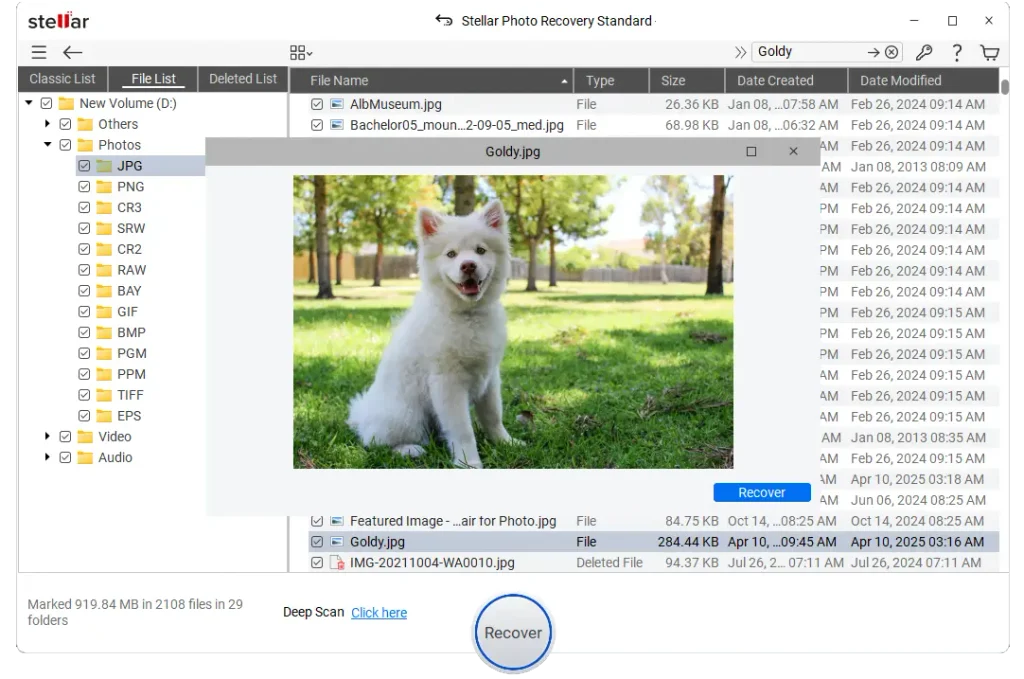
What sets Stellar apart is that it’s built around media. Most recovery programs try to handle everything from Word documents to database files. Stellar Photo Recovery focuses on photos, video and audio, which is what’s on an SD card anyway. It covers the usual JPEGs, plus RAW files from most major camera brands, and video from DSLRs, action cams and drones.
The workflow is about as simple as recovery gets. You pick the card, run a scan, and browse thumbnails of what it found. That preview step is the part I like most. You can see your photos before you pay anything, so you know the software can actually reach them. If the quick scan misses files, a deep scan digs through the card sector by sector for anything that lost its folder record. It works on both Windows and Mac.
The catch is that saving recovered files needs a paid license, and what you get varies by edition, so check Stellar’s site for current pricing. But for wedding photos, holiday shots or a client shoot, paying for a smoother path is usually an easy call.
2. PhotoRec
PhotoRec is free, open source, and stubbornly effective. It runs on Windows, Mac and Linux, and it ignores your card’s file system entirely, instead scanning the raw data for the signatures of known file types. That’s why it can pull files off cards that were reformatted or badly corrupted.
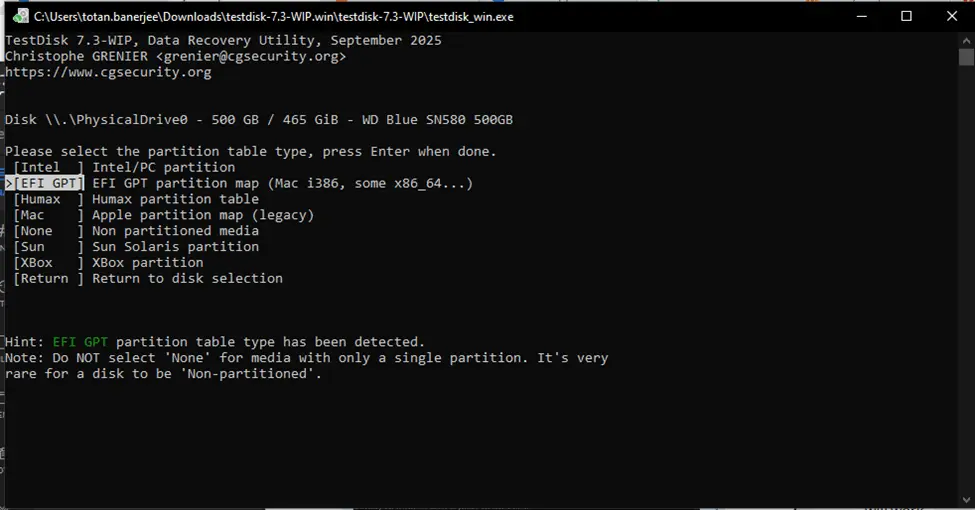
Nothing about it is pretty. It runs in a text window, you navigate with your keyboard, and the first time you use it, it feels like you’re doing something wrong. The bigger annoyance comes afterward. PhotoRec usually can’t restore original file names or folders, so you’ll end up with a directory full of files called things like f1234567.jpg. There’s also no preview, so sorting through them is up to you.
If you’re patient and your budget is zero, it’s hard to beat. Just set aside some time for the cleanup.
3. Recuva
Recuva has been around for years, and it’s the friendliest free option for Windows. A wizard asks what kind of files you’re after and where they were, then scans and gives you a list with a color dot showing how likely each file is to come back intact. Green is good, red is a long shot.
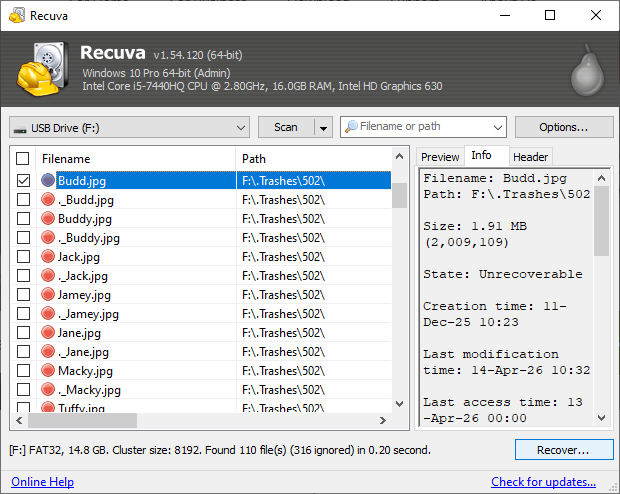
It’s best for simple, recent deletions. If you removed a few photos by accident this morning, give Recuva a quick try. It’s less reliable on cards that were formatted or have real corruption, and it hasn’t kept pace with newer camera formats as well as some rivals. Think of it as a first free attempt. If it comes up empty, that doesn’t mean your files are gone, only that you need a stronger tool.
4. Windows File Recovery
Microsoft has its own free recovery tool, and you can get it from the Microsoft Store on Windows 10 and 11. The catch is that it’s entirely command line. There’s no window, no buttons and no preview. You type a command, tell it which drive to scan, where to save results, and which mode to use.

That last part trips people up. The right mode depends on how your card is formatted and how the files were lost, and picking wrong means a scan that finds nothing. Microsoft’s documentation explains the options, and once you’ve got the syntax right it works fine. It’s a good pick if you’re comfortable in a terminal and like using an official tool. If the idea of typing recovery commands makes you nervous, use one of the others.
5. R-Studio
R-Studio is the heavy machinery. It comes from R-Tools Technology, runs on Windows, Mac and Linux, and it’s aimed at IT technicians more than casual users. It understands a long list of file systems and can do raw signature recovery when the file system is beyond saving.
The feature that earns its place is disk imaging. If a card is acting flaky, showing up and disappearing or throwing read errors, you can make a full copy of it first and run recovery on the copy. That protects a failing card from the extra strain of repeated scans, which matters when the data can’t be replaced.
It comes with a hex viewer and file previews, and there’s a demo version so you can scan before buying. The interface is dense, though, and the demo limits what you can save. Unless your card is behaving strangely or the simpler tools have failed, it’s overkill.
So Which One Should You Use?
It comes down to how much the files matter and how much time you want to spend.
If they’re irreplaceable, start with Stellar Photo Recovery. Run the scan and check the preview. Seeing your photos in that thumbnail list is a big relief, and you’ll know for certain that recovery is possible.
If you’d rather go free, try Recuva first for a simple deletion, then PhotoRec if that fails. Windows File Recovery is a decent backup if you don’t mind the command line. And if the card itself seems to be dying, R-Studio and its imaging feature are worth the learning curve.
Whatever you choose, recover to a different drive than the card.
Avoiding a Repeat
Recovery tools are a safety net, and they don’t always catch everything. A few habits make the next scare much less likely. Copy your photos to a computer or the cloud as soon as you can, not weeks later. Wait for the camera to finish writing before you eject a card. Format cards in the camera itself rather than on a computer. Retire old cards before they start failing, because they do wear out. And if you shoot a lot, carry spares so you never have to delete files in a rush.
Most lost SD card photos can be brought back, especially if you act quickly and leave the card alone. Try a tool, check the preview, and you’ll know pretty fast where you stand.