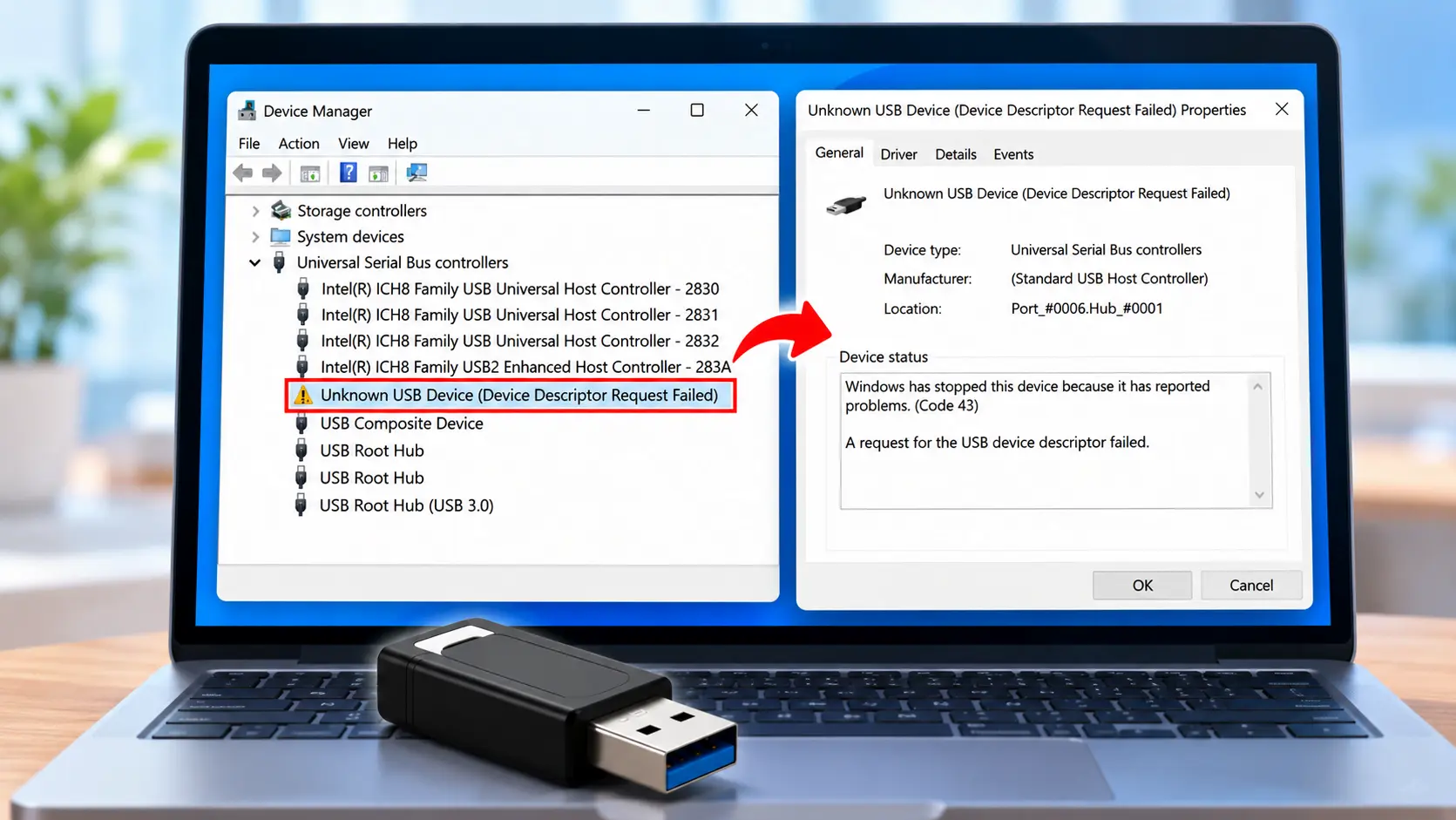

“Unknown USB Device (Device Descriptor Request Failed)” appears in Device Manager when Windows fails to complete the USB enumeration process for a connected device. The error can show for a USB flash drive, an external hard drive, a keyboard, a mouse, a webcam, or almost any USB peripheral — and the right fix depends on which of the scenarios below applies to your situation.
| Find your scenario first — then go to the right fix Your situation Most likely area to investigate Go to Error on this PC, device works on another Windows configuration, drivers, or port on this PC Fix 2 or Fix 3 Error on all PCs with this device The device itself may have a problem Fix 1, then see note below Error only on a specific port That port may be damaged or underpowered Fix 1 Device connected through a USB hub Hub power delivery or compatibility Fix 1 (connect direct) Error appears in a loop every few seconds Failing internal connection or dying device Loop fix section Error started after a Windows update Driver or configuration change Fix 3, Fix 5 Error only after sleep or hibernate Power management settings Fix 4, Fix 5 Keyboard, mouse, or webcam affected Same areas — plus firmware option Fix 1, Fix 2, peripheral section |
What this error actually means
USB enumeration is the process Windows uses to identify and configure a USB device when it is plugged in. As part of this process, Windows requests the device descriptor — a standardised block of data that identifies the device type, manufacturer, and protocols it supports. The error displayed in Device Manager can indicate a failure at several points in this process, including problems with the device descriptor itself, the USB port reset, the Set Address request, the USB controller, or the physical connection.
The error is not always caused by a problem with the descriptor specifically. Cable damage, port instability, power delivery issues, driver problems, or a fault in the device can all produce the same message. Identifying the most likely cause for your situation is more useful than working through a flat list of fixes in sequence.
What is Code 43?
When you open the properties of the Unknown USB Device entry in Device Manager, the Device status field typically shows Code 43: ‘Windows has stopped this device because it has reported problems.’ Code 43 is a general Device Manager error indicating that a device driver reported a problem and Windows stopped the device. It can occur in various circumstances. In the context of this USB error, the failed enumeration process results in Code 43 appearing alongside the descriptor failure message. Addressing the underlying USB issue typically resolves Code 43 in this context, though Code 43 is not exclusively caused by USB descriptor failures.
This error affects any USB device — keyboards, mice, webcams, printers, audio interfaces, and storage devices can all produce it.
Fix 1 — Check the cable, port, and physical connection
Start here regardless of the device type. These steps involve no software changes and rule out the most common physical causes.
- Disconnect the device, wait a few seconds, and reconnect it to a different USB port. Where applicable, consider trying a port that connects more directly to the motherboard rather than through a front-panel cable or hub.
- If the device connects through a USB hub, try connecting it directly to the PC instead. Some devices require more power or a more direct connection than a hub can reliably provide.
- If the device uses a separate cable (external drive, printer, audio interface), try a different cable.
- Test the device on a different computer.
| Result | What it suggests | Next step |
| Device works reliably on another computer | The issue is more likely related to this PC’s port, controller, drivers, power management, or compatibility | Continue with Fix 2 |
| Device works on a different port on the same PC | The original port may be damaged or have a power issue | Use the working port; investigate further if others also fail |
| Device fails on all ports and computers | The device may have a hardware or firmware problem | Software fixes are unlikely to help; see device-failure section |
- Restart the PC with the device disconnected, then reconnect after Windows has fully loaded.
Fix 2 — Uninstall and reinstall the USB driver
Driver problems can contribute to this error. Uninstalling and letting Windows reinstall the relevant driver is a straightforward first step.
- Press Windows + X and select Device Manager.
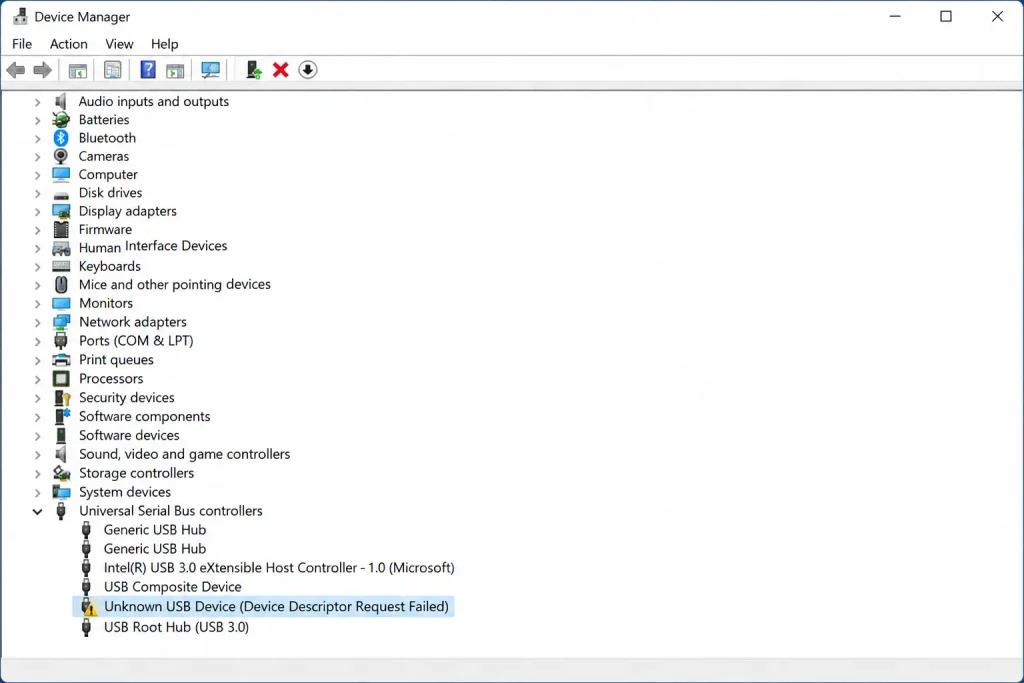
- Expand Universal Serial Bus controllers.
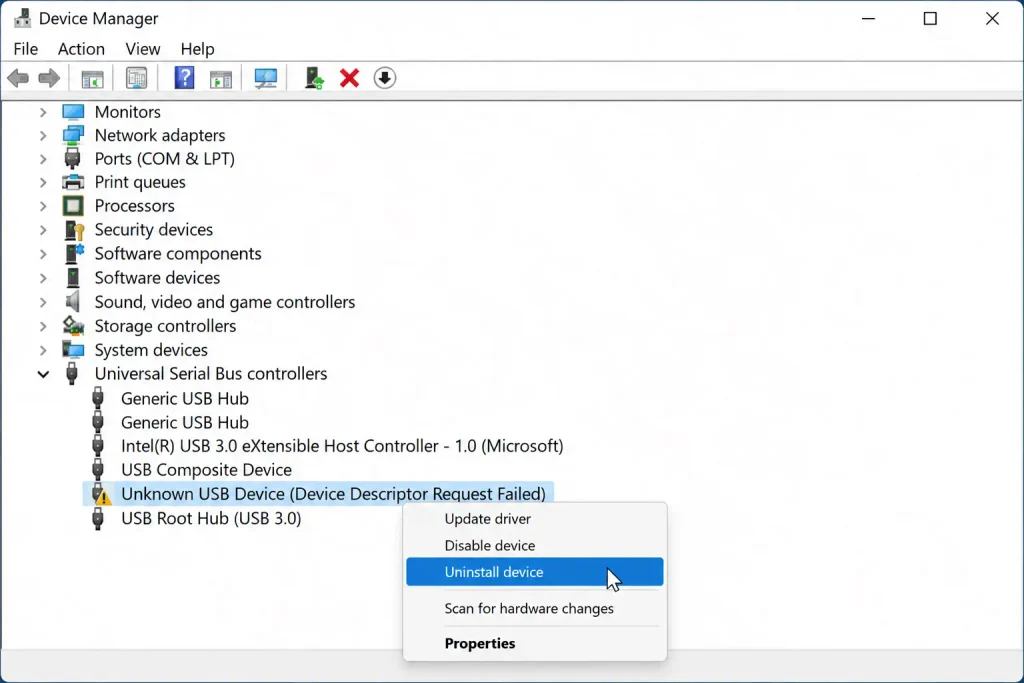
- Right-click Unknown USB Device (Device Descriptor Request Failed) and select Uninstall device. Confirm if prompted.
- Disconnect the USB device.
- Restart the PC.
- Reconnect the device after the restart. Windows will attempt to reinstall the driver.
Advanced option — USB Root Hub and Generic USB Hub entries: if the steps above do not resolve the error, you can also try uninstalling the USB Root Hub and Generic USB Hub entries in the same section of Device Manager, then restarting. Windows normally reinstalls the relevant drivers automatically after a restart. This is an additional step to try if the initial approach does not work, not a standard first action.
Fix 3 — Update USB controller drivers
Outdated controller drivers can affect USB device recognition. Updating them from the manufacturer is worth trying when driver reinstall alone hasn’t resolved the error.
- In Device Manager, expand Universal Serial Bus controllers.
- Right-click each USB Root Hub entry and select Update driver > Search automatically for drivers.
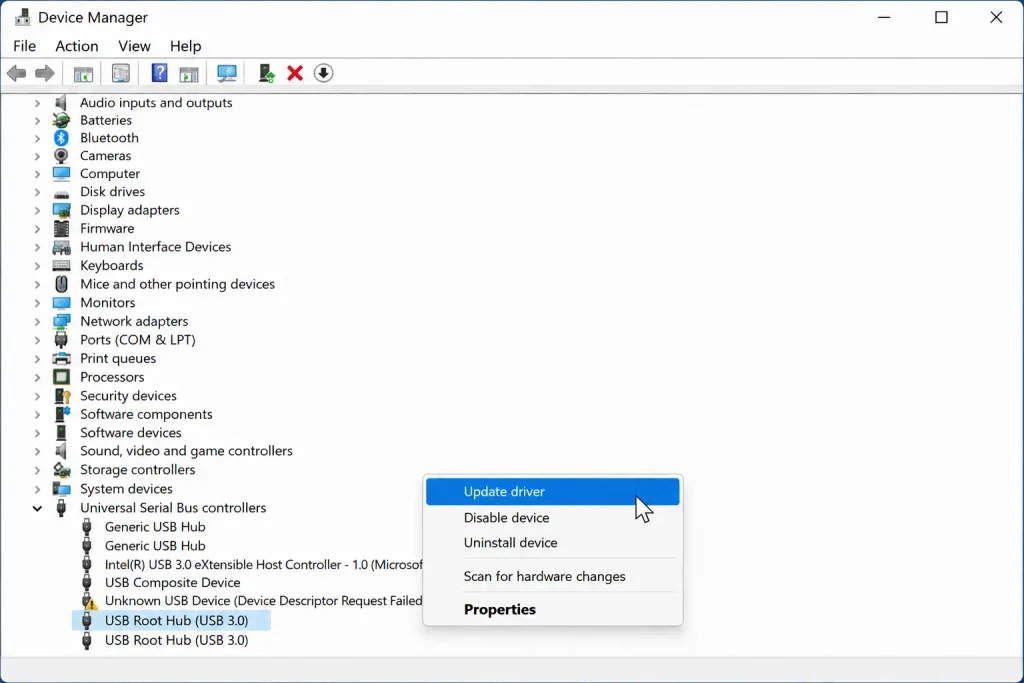
- Do the same for each Generic USB Hub entry.
- If Windows finds no update: go to your motherboard or PC manufacturer’s support page and download the latest USB or Chipset driver package. Install manually.
Fix 4 — Test with USB Selective Suspend disabled
USB Selective Suspend is a Windows power-management feature that can put individual USB ports into a low-power state. Temporarily disabling it can help determine whether a power-management issue is contributing to the problem, particularly when the error occurs after the system wakes from sleep or hibernate.
- Open Control Panel > Power Options. Or press Windows + R, type powercfg.cpl, and press Enter.
- Click Change plan settings next to your active power plan.
- Click Change advanced power settings.
- Expand USB settings > USB selective suspend setting.
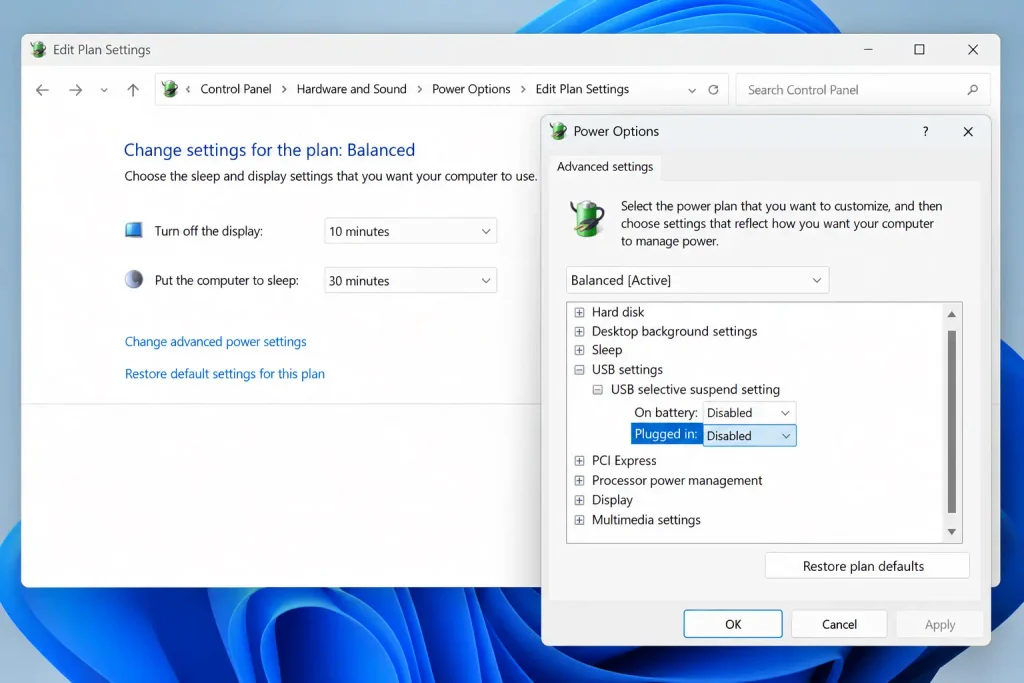
- Set both On battery and Plugged in to Disabled. Click Apply and OK. Restart and test.
Note: disabling USB Selective Suspend can increase power consumption. If disabling it resolves the error, it confirms that power management was a contributing factor. You may want to re-enable it later and investigate further, or leave it disabled if the trade-off is acceptable for your use case.
Fix 5 — Test with Fast Startup disabled
Fast Startup uses a hybrid shutdown mechanism. If you notice that the USB error occurs after a full shutdown and startup but not after a Restart, temporarily disabling Fast Startup can help identify whether the shutdown mechanism is a contributing factor.
- Open Control Panel > Power Options > Choose what the power buttons do.
- Click Change settings that are currently unavailable.
- Under Shutdown settings, uncheck Turn on fast startup (recommended).
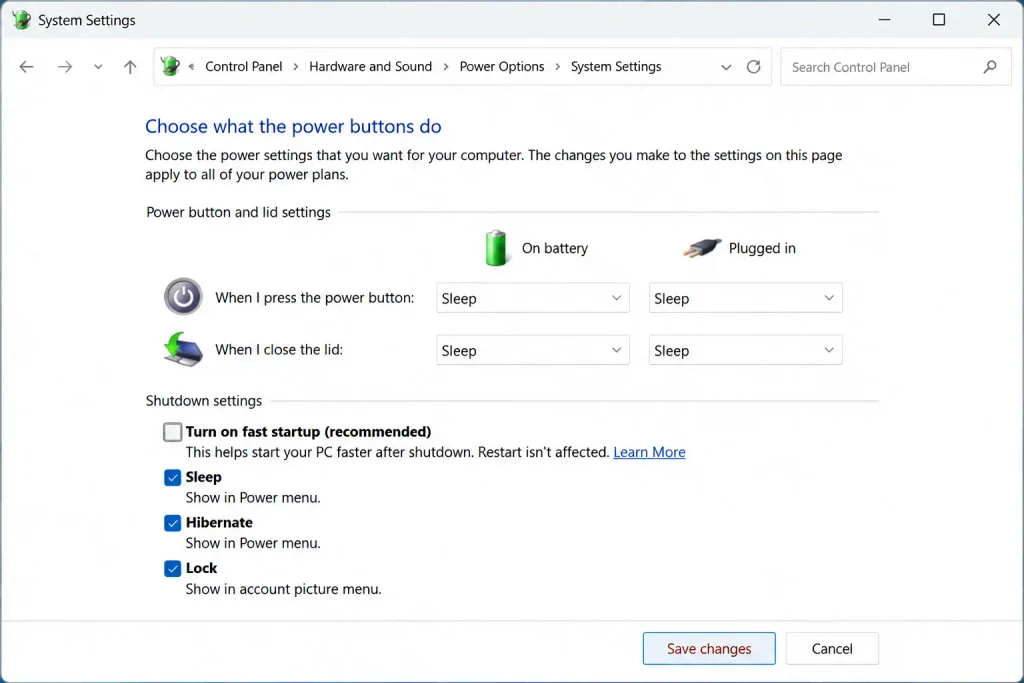
- Click Save changes. Fully shut down the PC and power it on again (not Restart). Test the USB device.
If the error does not occur after disabling Fast Startup, it suggests the shutdown mechanism is a factor. You can leave it disabled or investigate further.
Fix 6 — Run the Windows hardware troubleshooter
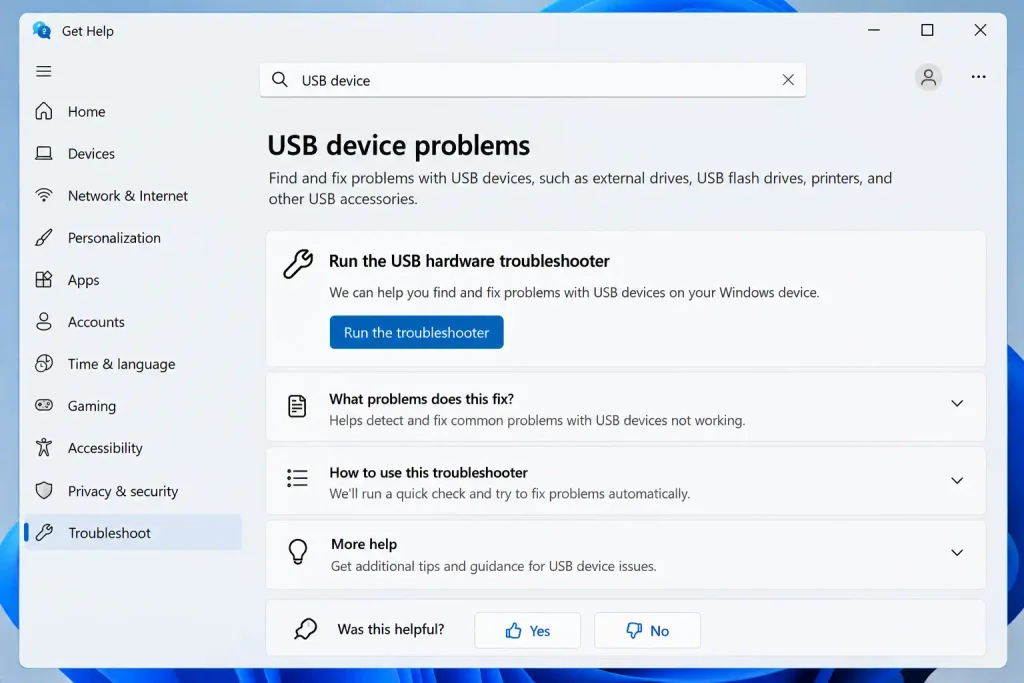
Windows includes a built-in diagnostic tool that can detect and apply fixes for common USB device recognition problems. The method for running it differs between Windows versions.
Windows 11 (current builds — 23H2, 24H2, 25H2, 26H1)
The Hardware and Devices troubleshooter does not appear in the Windows 11 Settings UI on current builds. Microsoft has been deprecating the legacy MSDT troubleshooter platform and moving troubleshooters to the Get Help app.
Option 1 — Get Help app: open the Get Help app (search for it in the Start menu) and search for ‘USB device not recognized’ or ‘Hardware and Devices troubleshooter’.
Option 2 — Command (works on some builds): press Windows + R, type msdt.exe -id DeviceDiagnostic, and press Enter. On builds where MSDT is still active, this launches the troubleshooter directly. On builds where it has been deprecated, Windows may redirect to the Get Help app or show a notice that the tool has moved.
Verify before publishing: confirm the current behaviour on the Windows 11 version in use at time of publication, as Microsoft’s MSDT deprecation rollout continues across versions.
Windows 10
Settings > Update & Security > Troubleshoot > Additional troubleshooters > Hardware and Devices > Run the troubleshooter. This path applies to Windows 10 versions where the troubleshooter remains available.
Fix 7 — Check for Windows updates
- Settings > Windows Update > Check for updates.
- Also check Advanced options > Optional updates. USB controller driver updates sometimes appear here and do not install automatically.
When the error loops: Unknown USB Device appearing and disappearing every few seconds
If Device Manager shows the Unknown USB Device entry appearing and disappearing repeatedly on its own — every few seconds, without you plugging anything in — this is a distinct scenario from a static error.
Steps to investigate the looping error
- Disconnect all USB devices one at a time and watch whether the loop stops. This isolates which connected device is causing the repeated enumeration attempt.
- On a desktop PC, check the front-panel USB header connection. The USB ports on the front of the case connect to the motherboard via an internal header cable. A loose, partially seated, or damaged connection can cause the USB controller to repeatedly detect and lose a device. If no device is visibly plugged into the front ports, try disconnecting the front-panel USB header cable temporarily to see whether the loop stops.
- If using a laptop, test while connected to AC power. Power-related instability can sometimes affect USB behaviour. Testing on AC power eliminates one variable.
Identifying the USB topology of the looping entry
Right-click the Unknown USB Device entry in Device Manager while it is visible, select Properties > Details > Property: Hardware IDs. The value field may contain location information such as Port_#0002.Hub_#0001. This can help identify the USB connection path or topology and narrow down which part of the system is involved, though it may not directly identify which physical port on the chassis is the source.
When the affected device is a keyboard, mouse, webcam, or other peripheral
If a keyboard, mouse, webcam, or audio interface is showing this error, the troubleshooting steps are the same as above. One additional step applies specifically to peripherals that have onboard firmware.
Check for a firmware update from the manufacturer. Some USB peripherals manage the USB descriptor exchange through their own firmware. A firmware problem can contribute to USB enumeration failures that a driver reinstall may not resolve. Check the manufacturer’s official support page or software (Logitech G Hub, Corsair iCUE, Razer Synapse, and similar utilities) for available firmware updates, and only update firmware when an appropriate update is available for your specific device.
If a firmware update is not available or does not resolve the error, and the device fails across multiple computers and ports, the device may have a hardware or firmware problem. Replacement is likely the practical next step.
If a USB storage device fails all fixes and contains data you need
Whether data recovery software can help depends on what is actually failing.
| Situation | Recovery software may help? |
| Device is detected by Windows but does not mount, or shows filesystem or partition errors | Yes — recovery software can often scan the storage and retrieve files even when the file system is inaccessible |
| Device enumerates partially but is unstable | Possibly — results vary depending on the nature of the fault |
| Device cannot enumerate at all because the USB controller or interface has failed | Standard recovery software may not be able to access the storage in this state |
| Severe hardware failure (clicking/grinding on a mechanical hard drive, device not spinning up, no power) | Professional data recovery is likely required — software tools cannot help |
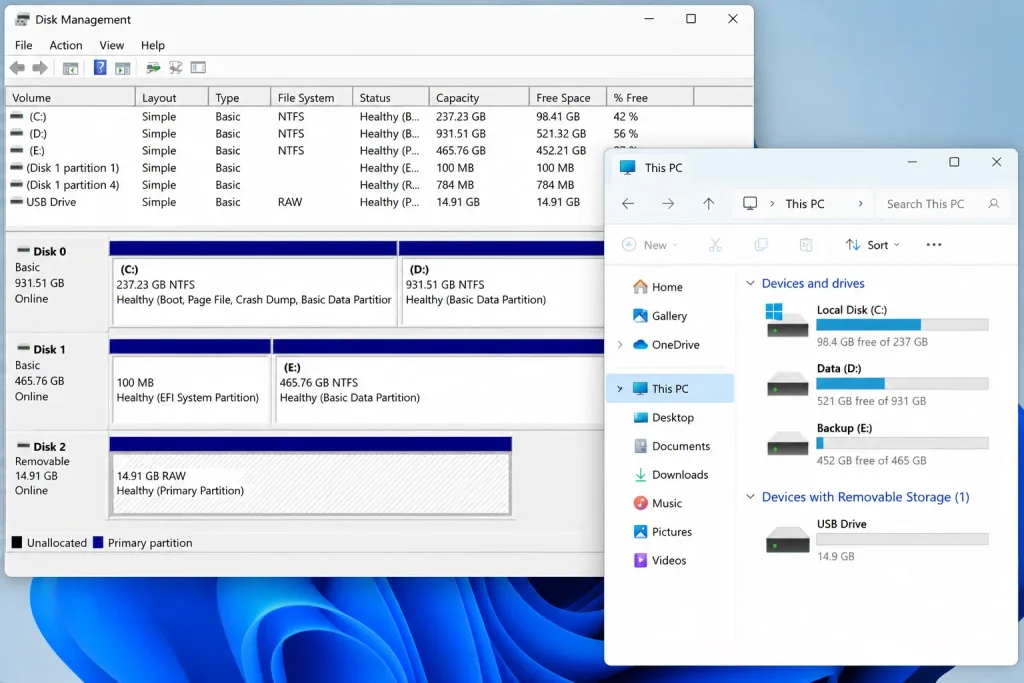
Important: do not format, reformat, or initialise the storage device before attempting recovery. Formatting overwrites the partition table and directory structures that recovery tools depend on, which significantly reduces the chance of retrieving your files.
Stellar Data Recovery can scan storage devices that do not mount correctly in Windows and retrieve files from damaged file systems. It works in the scenarios where the storage media is accessible, even if the normal Windows filesystem interface is not. For situations where the device’s USB controller or interface has failed and the device cannot be detected at all, professional data recovery services that work directly with the storage hardware may be required.
Clicking or grinding sounds are associated with mechanical hard drives, not USB flash drives or SSDs. For a mechanical hard drive making these sounds, power the device off immediately and consult a professional data recovery service.
Frequently asked questions
What does ‘Unknown USB Device (Device Descriptor Request Failed)’ mean?
Windows failed to complete the USB enumeration process for a connected device. The error can occur due to problems at several points in that process, including the physical connection, port, USB controller, device driver, device firmware, or the device itself. It does not always mean the device descriptor is the specific point of failure.
What is Code 43 and how does it relate to this error?
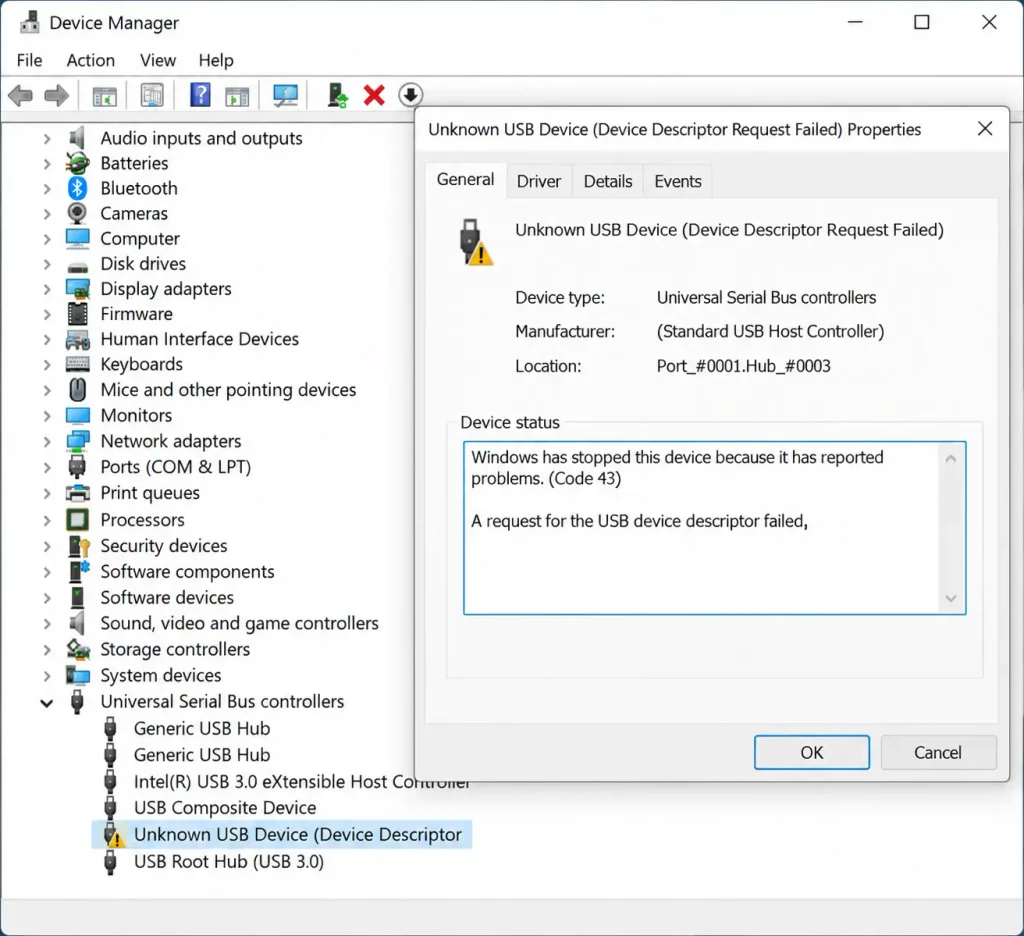
Code 43 in Device Manager means ‘Windows has stopped this device because it has reported problems.’ It is a general error indicating that a driver reported a problem. When Code 43 appears alongside a USB descriptor failure message, it is a result of the failed USB enumeration. Code 43 can also occur in other circumstances unrelated to USB descriptor failures.
My device works on another computer. Is the problem definitely with my PC?
If the device works reliably on another computer, the issue is more likely to involve this PC’s USB port, controller, drivers, power management, or compatibility rather than the device itself. However, device behaviour can vary between systems because of differences in USB controllers, power delivery, firmware, and signal conditions, so it is not absolute confirmation that the device is problem-free.
Why does the Unknown USB Device error keep appearing every few seconds?
A repeatedly looping error suggests a device is continuously attempting and failing to enumerate. Try disconnecting all USB devices one at a time to identify the culprit. On a desktop PC, check whether the front-panel USB header cable inside the case is fully seated. See the loop fix section above.
Can this error appear on keyboards, mice, or webcams — not just flash drives?
Yes. The USB enumeration process is the same for all USB device classes. Keyboards, mice, webcams, audio interfaces, printers, and game controllers can all produce this error when enumeration fails.
Is it safe to disable USB Selective Suspend?
Disabling USB Selective Suspend is safe for troubleshooting purposes. It can increase power consumption because USB ports remain fully active rather than entering a low-power state when idle. The actual impact varies depending on the hardware, connected devices, and workload. Re-enable it if it does not resolve the problem.
Can I recover data from a storage device showing this error?
It depends on what is failing. If the device is detected but does not mount or has filesystem problems, recovery software may be able to help. If the device’s USB controller has failed and Windows cannot detect it at all, standard recovery software is unlikely to be able to access the storage. See the recovery section above for more detail.physically damaged, software recovery is not possible. Attempt recovery before reformatting or initialising the drive.