

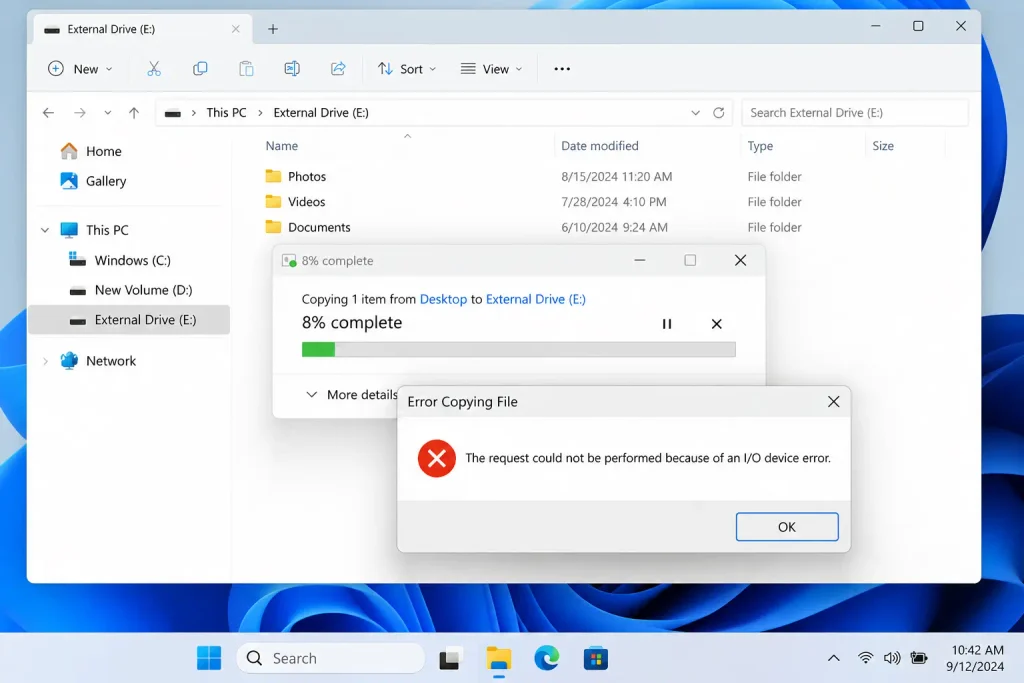
“The request could not be performed because of an I/O device error” is one of the most common — and least informative — error messages Windows produces. It means the operating system attempted to read or write to a storage device and the attempt failed before completing. The device might still be recoverable, or it might be failing. The first job is working out which, because the wrong response to this error is one of the most reliable ways to permanently lose data that could have been saved.
This guide identifies your scenario first, explains what causes this error, covers the safe steps to try, and is direct about when running a repair command is the wrong move.
| Find your scenario first Your situation Most likely cause Go to USB external drive stopped responding Cable or port fault Fix 1 Error on one PC, drive works on another Driver or OS issue Fix 2 Drive shows up, files won’t open, no sounds File system corruption Fix 3 + Fix 4 Internal C: drive throwing this error File system damage or failing drive Fix 4 — read data warning first Drive making clicking, grinding, or beeping sounds Mechanical failure — stop immediately Data warning section Error code 0x8007045D shown alongside message Identical error, hex code form Same fixes apply |
What this error actually means
“I/O” stands for input/output. When Windows attempts to read data from or write data to a storage device and the operation fails, it returns this message. The device — hard drive, SSD, USB flash drive, SD card — should have responded with data or a write confirmation, and instead the operation did not complete.
The error appears in slightly different forms depending on what triggered it:
- “The request could not be performed because of an I/O device error” — standard form, file access or copy operation
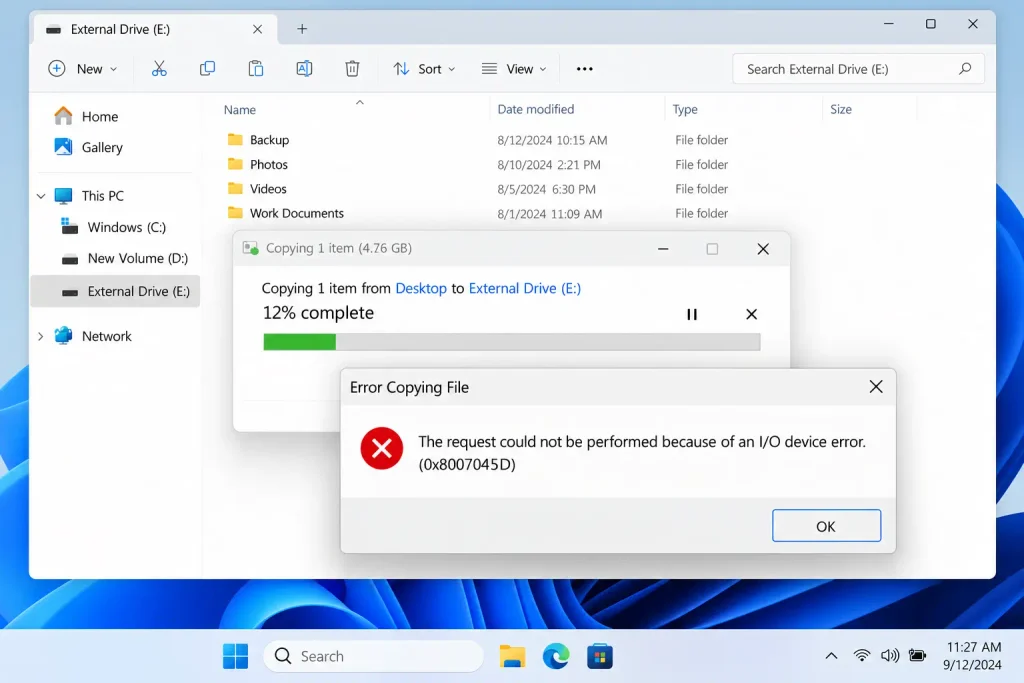
- Error 0x8007045D — the hex code form of the same error. Confirmed by Microsoft as ERROR_IO_DEVICE. The two are the same underlying problem and the same fixes apply.
- “Virtual Disk Manager: The request could not be performed because of an I/O device error” — appears specifically inside Disk Management’s Initialize Disk dialog
- “DiskPart has encountered an error: The request could not be performed because of an I/O device error” — appears in DiskPart command-line operations
All of these point to the same problem: Windows cannot reliably communicate with the storage device.
Read this before trying any fix
| Data-loss warning If the data on the drive matters and you cannot replace it, read this section before running any command or tool. Running chkdsk on a physically failing drive can destroy data. When chkdsk’s /r parameter encounters a bad sector it cannot read, it writes zeros to that sector and marks it as repaired. The original data — even partially readable data — is gone. On a drive with developing hardware failure, chkdsk reads the failing sectors repeatedly, which can accelerate failure further. Microsoft’s own support documentation states: ‘For safety you can back up your data before using the check disk command.’ Run chkdsk only when you are confident the error is a software (file system) issue, not a hardware one. Reformatting overwrites the structures that recovery depends on. Even a quick format replaces the partition table and directory structure. The file data isn’t immediately erased, but the index that locates it is gone. A drive making unusual sounds means mechanical failure. Clicking, grinding, or beeping paired with I/O errors means the drive’s read/write heads or platters are damaged. Every minute the drive runs in this state increases the risk to your data. Power off and do not attempt any software fix. |
What causes this error
Four causes, in increasing order of severity. Identifying which applies to you before running any fix is the most important step.
1. Cable or connection fault
The most common and easiest to rule out. A frayed USB cable, a loose SATA connector inside a desktop, a worn port, or a USB hub that can’t reliably supply power to a bus-powered drive can all produce I/O errors even when the drive itself is healthy.
Diagnostic clue: I/O errors that come and go, or that resolve when you reseat the cable or switch ports, are almost always connection issues.
2. Driver or operating system issue
Outdated or corrupted USB controller or disk drivers, or a Windows installation with corrupted system files, can produce I/O errors even on a healthy drive.
Diagnostic clue: Error appears on one computer but the drive works normally on another. The problem is in the PC, not the drive.
3. File system corruption
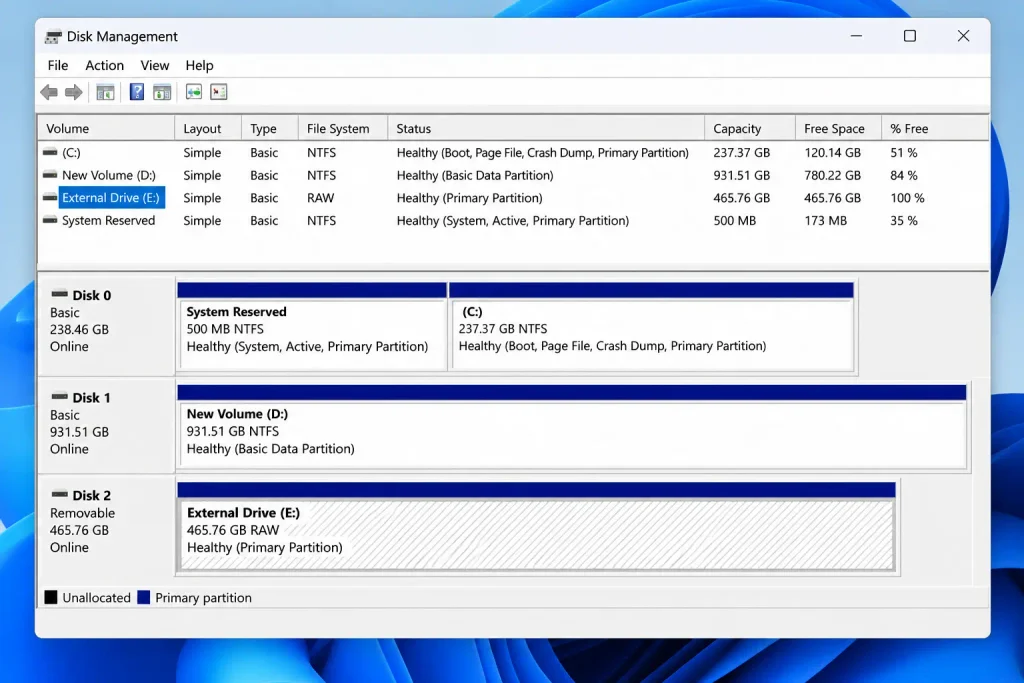
The NTFS, FAT32, or exFAT structures that organize data on the drive can become corrupted by improper disconnection during a write, a sudden power loss, or a system crash. The drive hardware works, but specific reads fail because the file system points to invalid locations.
Diagnostic clue: I/O errors that affect specific files or folders consistently while the rest of the drive works normally. Or: the drive shows up in Windows but shows as RAW instead of its normal file system format.
4. Failing drive hardware
Hard drives develop bad sectors over time. When the OS attempts to read a bad sector, the drive’s firmware retries through error-correction mechanisms; when those fail, the OS receives an I/O error. The error rate accelerates as the drive deteriorates. SSDs can also produce I/O errors from NAND cell failure or controller issues — unlike HDDs, SSDs can fail suddenly and completely after first showing intermittent errors.
Diagnostic clue: Errors that worsen over time, clicking or grinding sounds, the drive running unusually hot, or errors across multiple files in different locations.
Fix 1 — Check the cable, port, and connection (external drives)
Start here for any error on a USB-connected external drive. These steps cost nothing and carry zero risk.
- Disconnect the drive and inspect the USB cable for visible damage, bent connectors, or frayed sections.
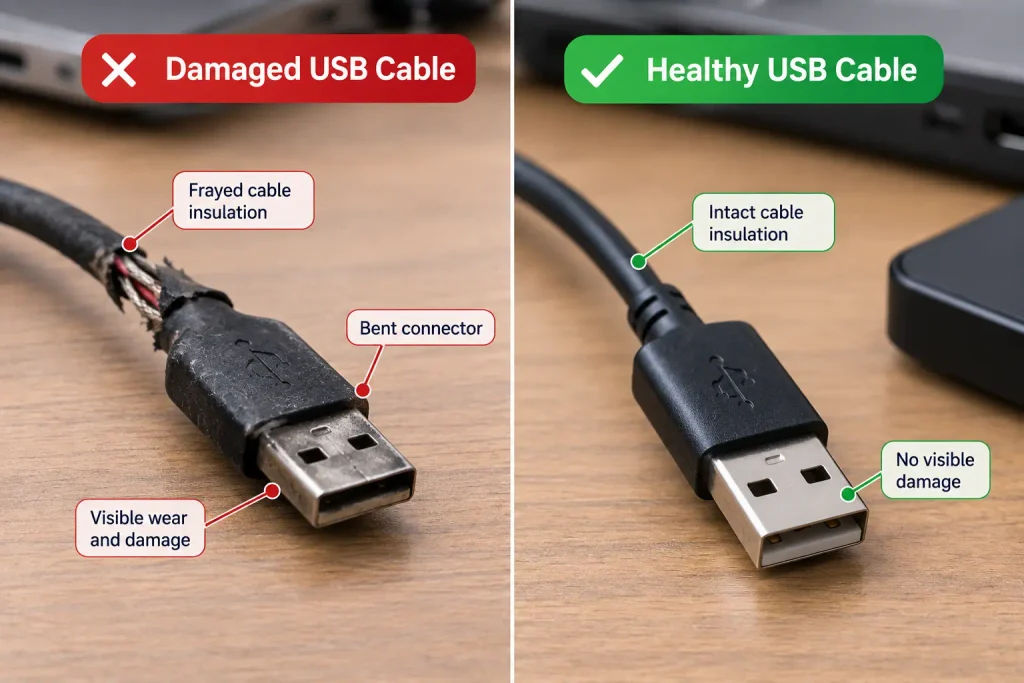
- Reconnect using a different USB cable if you have one available. USB cables — especially for portable hard drives — fail more often than most people expect.
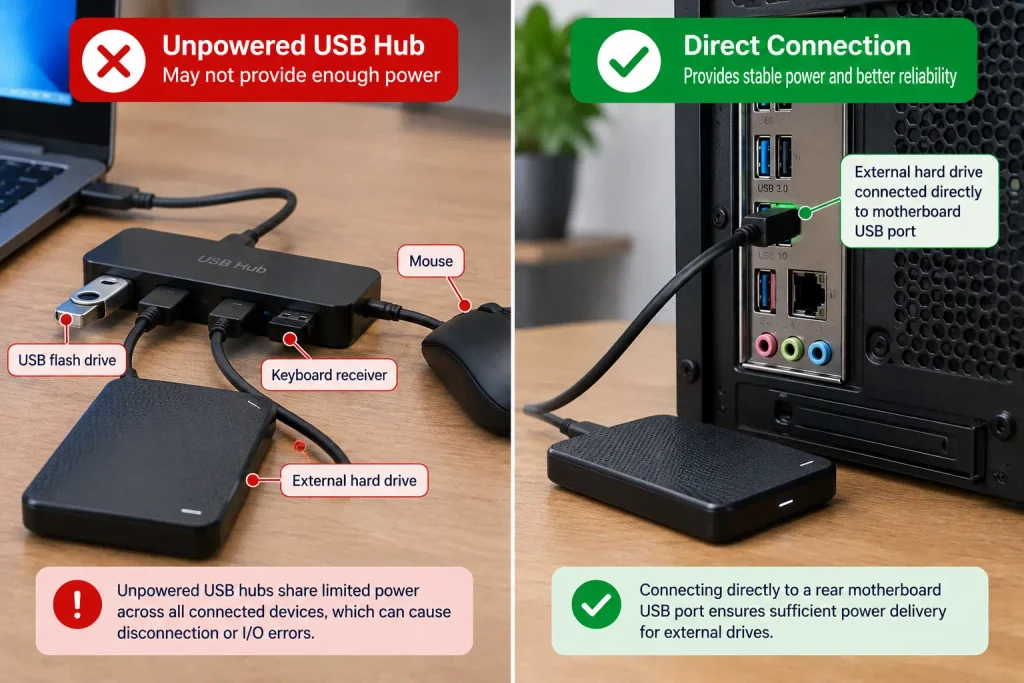
- Connect to a different USB port on the computer, ideally one directly on the motherboard I/O panel rather than a front-panel header or a hub.
- If using a USB hub, connect the drive directly to the computer. Bus-powered portable drives (2.5-inch external HDDs and some SSDs) need adequate power from the USB port. An unpowered hub shared across multiple devices may not deliver enough current, which produces I/O errors that disappear when the drive is connected directly.
- Try the drive on a different computer.
| Result | What it means | Next step |
| Drive works on a different computer | Port, driver, or power issue on original PC | Go to Fix 2 |
| Drive works with a different cable | Original cable was the problem | Done |
| Drive still fails on multiple computers with multiple cables | The drive itself is the problem | Continue with Fix 3, but read the data warning first |
Fix 2 — Update or reinstall the disk or USB driver
If the drive works on another computer but not yours, the driver is the most likely culprit.
- Right-click the Start button and select Device Manager.
- Expand Disk drives (or Universal Serial Bus controllers for a USB device).
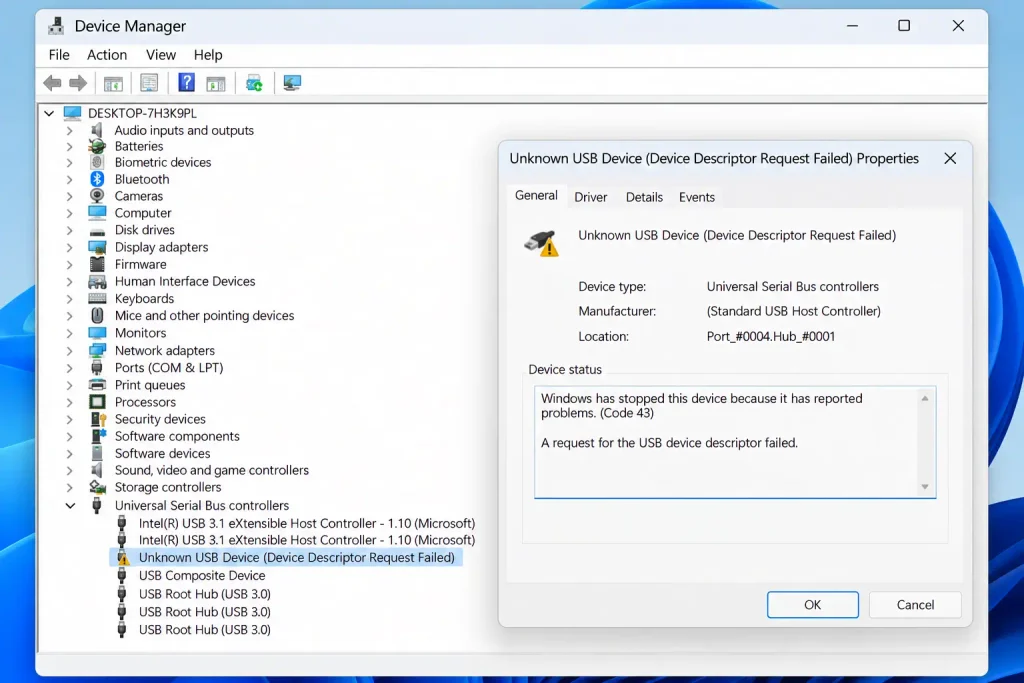
- Right-click the affected device and choose Update driver > Search automatically for drivers.
- If no update is found or the error persists: right-click the device again, choose Uninstall device, then restart your computer. Windows will reinstall the driver automatically on next boot.
Also check the USB controller itself: expand Universal Serial Bus controllers, look for any entry with a yellow warning icon, and update or reinstall those drivers as well.
Fix 3 — Assign or reassign the drive letter
A missing or conflicting drive letter can produce access errors that look identical to hardware I/O errors. This is a zero-risk fix worth trying before running any disk repair command.
- Press Windows + R, type diskmgmt.msc, and press Enter.
- Locate the affected drive. If the partition shows no drive letter, or a letter that conflicts with another device:
- Right-click the partition and choose Change Drive Letter and Paths.
- Click Change, select a new letter from the dropdown, and confirm.
Fix 4 — Run Windows Error Checking or CHKDSK (only if no physical symptoms)
| Run this only if the drive is not making unusual sounds and you are confident the error is a software (file system) issue, not a hardware one. On a physically failing drive, chkdsk can permanently destroy data it would otherwise have been possible to recover. See the data warning section above. |
GUI method (Windows Error Checking)
- Select Properties > Tools tab > Error checking > Scan drive.
- Let the scan complete and follow any prompts.
Command-line method (CHKDSK)
- Open Command Prompt as Administrator (search cmd, right-click, Run as administrator).
- Run the following, replacing X with the affected drive’s letter:
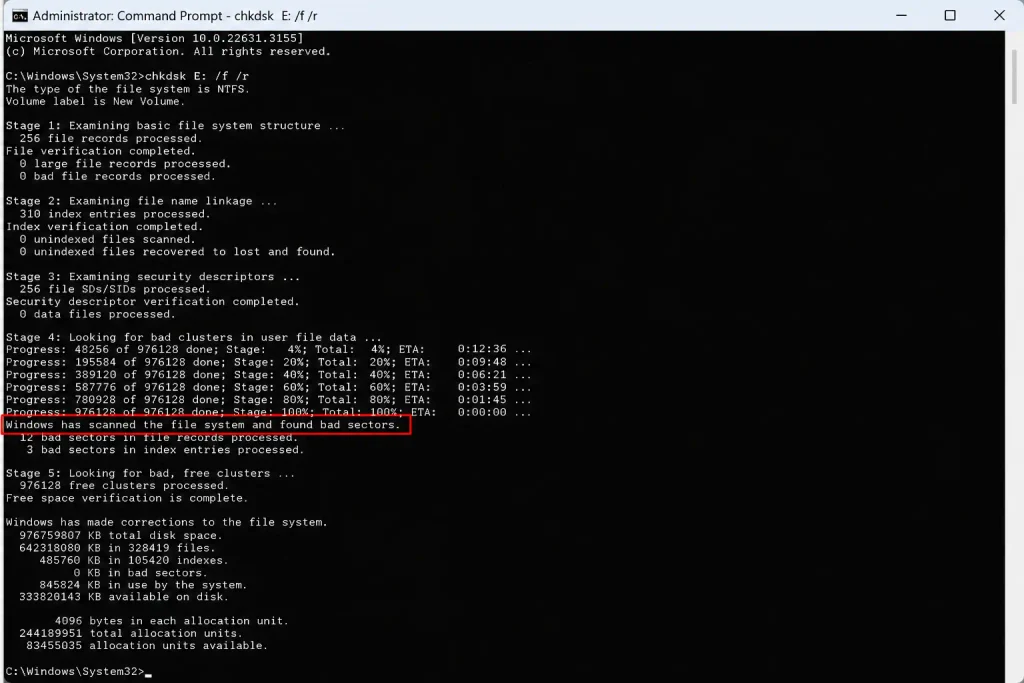
chkdsk X: /f /r
The /f parameter fixes file system errors. The /r parameter locates bad sectors and attempts to recover readable information. Per Microsoft Docs: ‘Locates bad sectors and recovers readable information.’ If running against C: (the OS drive), Windows will schedule the scan for the next restart.
- If prompted that the drive is in use, type Y and restart.
Important: Do not run chkdsk on a drive that is making clicking or grinding sounds, or that shows Degraded status in PowerShell (see Fix 5 below). On a drive with developing mechanical failure, the /r scan reads every sector repeatedly, which can push a partially-functional drive to complete failure during the scan.
Why the fix path differs: internal C: drive versus external USB drive
Every competitor guide treats internal and external drives identically. The risk profile is meaningfully different.
Internal C: drive throwing I/O errors
This is a more serious situation. If the OS drive is returning I/O errors, Windows itself may become unstable or unbootable as the situation worsens. The right order of operations:
- Back up your personal files immediately — before running any scan or repair — using another drive or cloud storage.
- If inside a desktop: open the case and check that the SATA data cable connecting the drive to the motherboard is fully seated at both ends. SATA cables can loosen from vibration.
- Run Fix 2 (driver update) and Fix 4 (chkdsk) only after confirming the drive is not making physical sounds.
- If chkdsk reports a large number of bad sectors or the errors persist after a repair: replace the drive. An internal drive reporting multiple bad sectors is failing, not recoverable through software.
External USB drive throwing I/O errors
Start with Fix 1 (cable and port) every time. USB-to-SATA bridge failures in bus-powered portable drives are common, and cable failures are more common than people expect. Many external drive I/O errors that look like drive failure resolve with a cable replacement.
Bus-powered portable drives (2.5-inch models without a separate power adapter) require adequate USB power. Connecting through an unpowered hub, or through a low-power USB port on a laptop’s side panel rather than a rear port, can produce persistent I/O errors on an otherwise-healthy drive.
I/O errors by device type: what to expect
Traditional hard drives (HDD)
Bad sectors develop gradually and accelerate once they start. Clicking sounds paired with I/O errors mean the read/write heads are struggling to position correctly over data. Power the drive off immediately when you hear clicking — the heads are physically dragging on the platter surface, and every additional read attempt causes more damage.
Solid-state drives (SSD)
SSDs don’t develop bad sectors the way HDDs do. When an SSD starts throwing I/O errors, the cause is usually NAND cell failure or controller issues, and SSDs can fail suddenly and completely with little further warning. Back up immediately. Do not delay. The window between first symptoms and total failure on an SSD is typically much shorter than on an HDD.
USB flash drives
Controller failures and NAND wear are the most common causes. USB flash drives have less internal redundancy than larger drives, so partial controller failures often present as persistent I/O errors with no path to software recovery. Formatting a flash drive throwing I/O errors often fails or completes but produces a drive that fails again quickly — the controller is the problem, not the file system.
SD cards and microSD cards
Physical contact wear is common, especially in cards used across multiple devices. Intermittent I/O errors on an SD card often resolve with a different card reader before failing permanently. If a card throws errors in all readers on all devices, the card itself has failed.
Fix 5 — Check drive health before running any repair command
Run this before Fix 4. It tells you whether the drive reports a hardware problem before you commit to running chkdsk against it.
- Open PowerShell as Administrator.
- Run:
Get-CimInstance -ClassName Win32_DiskDrive | Select-Object DeviceID, Status
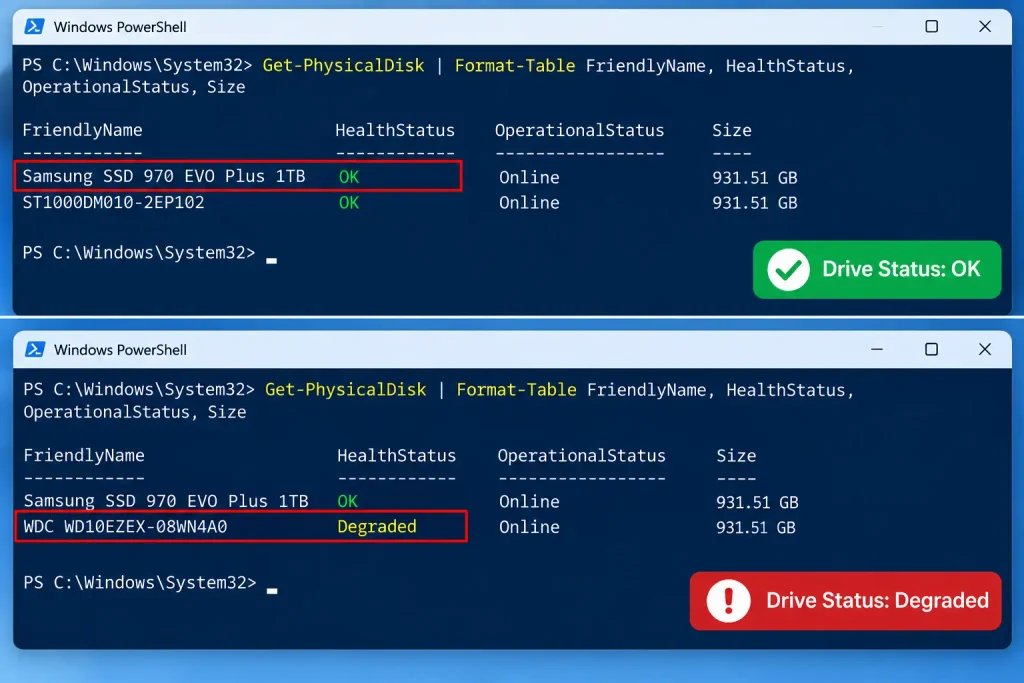
This returns OK, Degraded, or an error status for each connected drive. If the affected drive returns Degraded or any status other than OK: do not run chkdsk. The drive has a hardware problem and chkdsk is the wrong tool.
Note: the older wmic diskdrive get status command was removed from Windows 11 in the August 2026 update (versions 24H2, 25H2, and 26H1). Use the PowerShell command above instead.
Fix 6 — Recover data with dedicated software before formatting or initializing
If the fixes above have not resolved the error and the drive still responds without physical symptoms, dedicated recovery software is the next step before any formatting, initialization, or disposal of the drive.
The correct order: recover the data you need first, then decide whether to reformat or replace the drive. Reversing this order is how data is permanently lost.
Stellar Data Recovery Professional is built to retrieve files from drives in this state, including cases where Windows can no longer open the drive normally. It scans the raw drive data rather than relying on the file system, which means it can recover files even when the directory structure is damaged.
Frequently asked questions
What does ‘the request could not be performed because of an I/O device error’ mean?
Windows attempted to read from or write to a storage device and the operation failed at the hardware communication level. The cause ranges from a faulty cable to a failing drive. It does not automatically mean the drive or its data is lost.
What is error code 0x8007045D?
It is the hex representation of the same error, confirmed by Microsoft as ERROR_IO_DEVICE. The text message and the error code refer to the same underlying problem. The same fixes apply to both.
Can I fix an I/O device error without losing my data?
Yes, if the cause is a cable, port, driver, or file system issue. If the cause is hardware failure (bad sectors, failing controller, mechanical damage), software fixes cannot reliably recover data and some can make things worse. Recovering data with dedicated recovery software before attempting any repair is the safest approach when the data matters.
Should I run chkdsk if I get an I/O device error?
Only if the drive is not making unusual sounds and you are confident the problem is file system corruption rather than hardware failure. On a physically failing drive, chkdsk can zero out bad sectors and permanently overwrite data that might have been recoverable. Run the PowerShell health check (Fix 5) first. If the drive reports Degraded, do not run chkdsk.
Why does an I/O device error appear on one computer but not another?
The problem is in the computer, not the drive. A corrupted or outdated USB controller driver, a faulty USB port, or insufficient power from a hub are all computer-side causes that produce I/O errors on an otherwise-healthy drive. Fix 2 (driver reinstall) usually resolves this.
Are I/O errors different on SSDs versus hard drives?
The error message and fix paths are similar, but SSDs tend to fail more suddenly after first showing symptoms. An HDD with developing bad sectors often gives weeks of warning before complete failure. An SSD showing I/O errors may fail completely within days. Back up an SSD immediately after seeing this error.
What should I do if my drive is making clicking sounds alongside this error?
Power off the drive immediately. Do not attempt any software fix. Clicking sounds paired with I/O errors indicate mechanical failure — the read/write heads are not positioning correctly. Every additional read attempt risks further platter damage. Professional data recovery is the appropriate next step for a clicking drive.

