
PST file corruption happens when Outlook’s data file gets damaged to the point where it can no longer be read properly. This can occur due to reasons like oversized files, sudden shutdowns, hard drive issues, malware, or network problems. When a PST file corrupts, you may lose access to emails, contacts, and calendar data stored in Outlook.
What is PST File Corruption?
Start this section with a one-line interlink: naturally reference and hyperlink the anchor text “PST file” or “what is a PST file” to the dedicated PST file explainer article. Example placement:
“Before getting into what causes corruption, it helps to understand what is PST file and how Outlook uses it to store your emails, contacts, and calendar data.”
Common Signs of PST File Corruption
Before things get worse, Outlook usually gives you warning signs. Watch for these:
- Outlook takes unusually long to open or freezes during startup
- Emails, folders, or contacts suddenly disappear
- You see errors like “The file path\filename.pst is not a personal folders file”
- Send/Receive errors that don’t resolve on their own
- Outlook crashes repeatedly without warning
- Folders appear empty even though you know emails were there
- Search stops working or returns no results
- Synchronization gets stuck or fails consistently
- Outlook prompts you to repair the data file on startup
If you are seeing two or more of these, your PST file likely has some level of damage.
Top Causes of PST File Corruption
Oversized PST Files
Outlook sets a size limit on PST files. If you are using an older ANSI format PST (common in Outlook 2002 and earlier), the limit is just 2 GB. Cross that, and the file gets damaged automatically.
Newer Unicode format PST files used in Outlook 2003 and later have a default limit of 50 GB, but Microsoft still recommends keeping them under 20 GB for stable performance.
When a PST file grows too large, Outlook struggles to read and write data efficiently. This strain eventually leads to corruption, especially during high-activity periods like email sync or search indexing.
Quick check: Go to your PST file location, right-click the file, and check its size. If it is approaching the limit, start archiving immediately.
Sudden System Shutdown
Outlook keeps the PST file open while it is running. Data is constantly being written and updated in the background. If your system shuts down abruptly without giving Outlook time to close the file properly, the write operation gets interrupted mid-way.
This leaves the PST file in an inconsistent state. The next time Outlook opens, it finds incomplete data and either throws an error or tries to repair itself.
This is one of the most common causes, especially on laptops with poor battery health.
Power Failure
Similar to sudden shutdowns but often more severe. A power cut while Outlook is actively syncing emails or writing to the PST file can corrupt multiple sections of the file at once.
If you work in an area with unstable power supply, using a UPS (Uninterruptible Power Supply) for your workstation is worth considering.
Malware or Virus Attacks
Malicious programs do not just steal data. Many viruses and ransomware directly target document and database files, including PST files. They either encrypt the file, inject corrupt code into the structure, or delete internal index tables.
Even after removing the malware, the PST file damage usually remains. This is why having a recent backup matters more than any antivirus alone.
Hard Drive Bad Sectors
Your PST file is stored on a physical drive. If that drive develops bad sectors (areas that can no longer reliably store data), whatever portion of the PST file sitting on those sectors gets corrupted.
Bad sectors are more common in older HDDs but can also occur due to physical damage or manufacturing defects. SSDs handle this differently but are not completely immune to storage-level failures.
Run a disk health check with tools like CrystalDiskInfo if you suspect drive issues.
Outlook Crashes
When Outlook crashes unexpectedly, whether due to a bug, a conflicting update, or a system resource issue, it exits without properly closing the PST file. Repeated crashes over time cause incremental damage that builds up.
If Outlook is crashing frequently, fix the root cause before worrying about the PST file. The file may keep getting damaged otherwise.
Network Issues
Microsoft explicitly advises against storing PST files on network drives or shared folders. Outlook needs a stable, low-latency connection to read and write to a PST file continuously.
Any network drop, packet loss, or latency spike during a write operation can corrupt the file. If you are accessing a PST file over a VPN or mapped network drive, this risk is even higher.
Always store PST files locally. Use Exchange or Microsoft 365 if you need shared mailbox access.
Faulty Add-ins
Third-party Outlook add-ins like email trackers, CRM integrations, or productivity tools interact directly with Outlook’s data layer. A buggy or outdated add-in can interfere with how Outlook reads and writes to the PST file.
If corruption started after installing a new add-in, that is a strong signal. Disable add-ins one by one from File > Options > Add-ins to identify the culprit.
Improper PST File Transfer
Copying or moving a PST file while Outlook still has it open is a recipe for corruption. The file is in an active state, and interrupting that process damages the internal structure.
Always close Outlook completely before copying, moving, or renaming a PST file.
Antivirus Interference
Real-time antivirus scanning sometimes locks the PST file during a scan while Outlook is trying to write data simultaneously. This conflict can cause write errors that corrupt the file over time.
Most antivirus software lets you add folder exclusions. Add your PST file’s folder to the exclusion list. This does not mean the file goes unprotected. You can still run scheduled scans when Outlook is closed.
Can Large PST Files Cause Corruption?
Yes, and this is more common than most users realize.
As a PST file grows, Outlook’s internal index and B-tree structure has to work harder to maintain organization. Beyond a certain size, this puts consistent strain on file integrity. Any interruption during a read/write operation on a large file has a bigger impact because more data is in flux at any given moment.
Prevention tips:
- Archive emails older than 12 months regularly
- Use Outlook’s built-in Compact Now feature (File > Account Settings > Data Files > Settings > Compact Now)
- Split large PST files using archive rules
- Move attachments out of Outlook and store them separately
Why Storing PST Files on Network Drives is Risky
Microsoft’s own documentation recommends against it, and for good reason.
PST files are designed for local storage. Outlook makes hundreds of small read/write calls to the PST file every minute. Over a network connection, even a brief lag can interrupt these operations.
If two users accidentally access the same PST file over a network simultaneously, the file will corrupt almost immediately. There is no file-locking mechanism built into the PST format for network use.
If your organization needs shared email access, the right solution is an Exchange server or Microsoft 365, not a shared PST file on a network drive.
How to Prevent PST File Corruption
1. Back up your PST file regularly Copy the file to an external drive or cloud storage at least once a week. Close Outlook before doing this.
2. Keep the file size manageable Archive old emails and compact the PST file periodically.
3. Shut down Outlook properly Always close Outlook before shutting down your computer. Give it 30 seconds to finish background operations.
4. Store PST files on local SSDs SSDs are faster and more reliable for the kind of constant small read/write operations Outlook performs.
5. Exclude PST folders from real-time antivirus scanning Schedule scans for when Outlook is not running.
6. Run ScanPST periodically You do not have to wait for errors. Running the Inbox Repair Tool once every few months is good preventive maintenance.
7. Avoid network drive storage Keep your PST file on a local drive, always.
What to Do If Your PST File is Already Corrupted
Step 1: Run ScanPST.exe (Inbox Repair Tool)
This is Outlook’s built-in repair utility. Find it at: C:\Program Files (x86)\Microsoft Office\root\OfficeXX\SCANPST.EXE
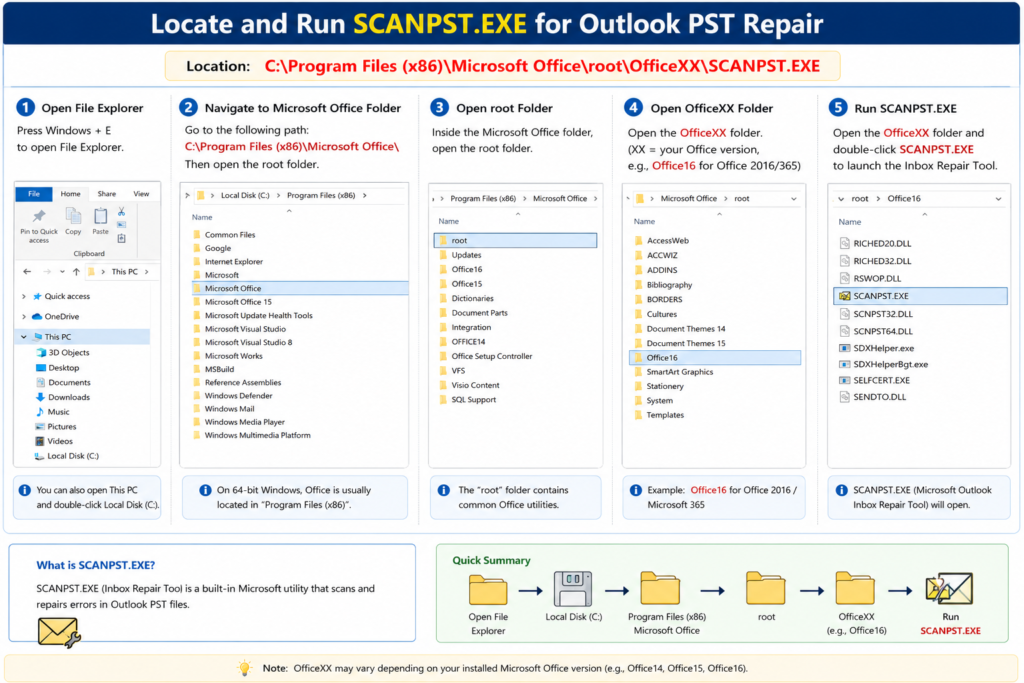
Close Outlook first, then browse to your PST file and run the scan. ScanPST works well for minor to moderate corruption.
Step 2: Run it multiple times if needed
ScanPST sometimes needs 2–3 passes to fully repair a file. If it keeps finding errors, run it again after each fix.
Step 3: Restore from backup
If you have a recent backup, restoring it is faster and more reliable than repairing a heavily damaged file.
Step 4: Use a professional PST repair tool
For severe corruption where ScanPST fails or reports it cannot repair the file, a dedicated PST repair tool can recover data that the built-in utility cannot. These tools work at a deeper level and can often recover emails even from heavily damaged files.
Step 5: Do not keep using a corrupted PST file
Continuing to use Outlook with a corrupt PST file makes things worse. Outlook writes to the file continuously, and doing so on a damaged structure causes more data loss.
Conclusion
PST file corruption is not random. It almost always comes from a specific, preventable cause: an oversized file, a system that shut down at the wrong moment, a faulty drive, or a network that was never meant for this kind of use.
The good news is that most corruption is recoverable, especially if you catch it early. ScanPST handles the common cases, and professional repair tools handle the rest.
The bigger win is prevention. Keep your PST files local, sized reasonably, backed up regularly, and give Outlook time to close properly before shutting down. Follow those four rules and you will rarely need to think about PST corruption at all.
If your PST file is already showing errors, do not delay. The longer Outlook keeps writing to a damaged file, the more data you risk losing.
FAQ
Can PST corruption cause permanent email loss?
It can, but not always. In many cases, the data is still physically present in the file but the structure pointing to it is broken. A good repair tool or backup recovery can get most of it back.
How do I know my PST file is corrupted?
Common signs include Outlook showing errors on startup, missing emails or folders, slow performance, and failed send/receive operations. Outlook sometimes prompts you directly to repair the data file.
Can ScanPST fix severe corruption?
ScanPST handles light to moderate corruption well. For severe damage, it often fails or reports that it cannot complete the repair. In those cases, a third-party PST repair tool is your next option.
Is PST corruption permanent?
Not necessarily. Most corruption is structural, meaning the data exists but the internal map to it is broken. Repair tools rebuild that map and restore access.
What is the maximum PST file size?
For older ANSI PST files: 2 GB. For newer Unicode PST files (Outlook 2003 and later): 50 GB by default, but Microsoft recommends staying under 20 GB.
Does Outlook 365 still use PST files?
Yes. Outlook 365 (desktop client) can still use PST files for local storage. However, if you are using Exchange or Microsoft 365 accounts, email is stored on the server and PST files are optional.
Can an SSD failure corrupt PST files?
Yes. While SSDs are more reliable than HDDs for Outlook’s read/write patterns, they can still fail. Sudden SSD failures during active Outlook use can corrupt the PST file just like an HDD failure would.
What happens if I move a PST file while Outlook is open?
Outlook loses the connection to the file and will likely throw an error. Worse, if data was being written at that moment, the file can corrupt. Always close Outlook before moving PST files.
Can I have multiple PST files in Outlook?
Yes. Outlook supports multiple PST files simultaneously. Each appears as a separate data file in your folder list. Just keep an eye on total sizes.
Does compacting a PST file prevent corruption?
Compacting reduces file size by removing unused space, which lowers the corruption risk that comes with oversized files. It is a good maintenance habit, but it does not make the file corruption-proof on its own.