
If you’ve used Microsoft Outlook for any length of time, you’ve probably run into a PST file — whether you meant to or not. It’s the file format quietly holding years of email, contacts, and calendar entries on your hard drive, and it’s also one of the more common sources of frustration when Outlook won’t open, a mailbox balloons in size, or an IT team needs to migrate a company to the cloud.
This guide covers what a PST file actually is, how it differs from an OST file, the technical details that trip people up (file formats, size limits), the security risks worth knowing about, and how to find, repair, compact, and migrate one.
What is a PST file?
A PST file — short for Personal Storage Table, though Microsoft officially calls it an Outlook Data File and it’s sometimes referred to as a personal folder file — is the container Outlook uses to store your mailbox data locally, on your own device rather than on a server.
A single PST file can hold your emails, contacts, calendar entries, tasks, and notes. When Outlook is configured with a POP3 email account, or when you manually export or archive data, this is the file format it uses.
The important distinction to understand upfront: a PST file lives entirely on your computer. Nothing about it is automatically synced anywhere else. That’s different from how Outlook handles Exchange or Microsoft 365 accounts, which use a related but distinct file type — the OST file — covered in detail below.
ANSI vs Unicode PST formats {#ansi-vs-unicode-pst-formats}
Not all PST files are built the same way, and the difference matters more than most guides let on — particularly if you’re dealing with an older archive or troubleshooting a repair.
Outlook has used two different PST formats over the years:
- ANSI format — used by Outlook 2002 and earlier (Outlook 97 through Outlook 2002/XP). ANSI PST files are capped at 2 GB. Once a file approaches that limit, Outlook typically starts throwing errors or refusing to add new items.
- Unicode format — introduced with Outlook 2003 and used by every version since. Unicode PST files support up to 50 GB, and they handle a much wider range of character sets, which matters for international mailboxes.
Why this distinction is worth knowing:
- Compatibility: A modern version of Outlook can still open an old ANSI PST, but the reverse isn’t true — you can’t open a Unicode PST in a version of Outlook old enough to only support ANSI.
- Repair tools: Some repair utilities behave differently depending on which format they’re working with, and knowing the format helps you set expectations for how much data recovery is realistic.
- Migration: If you’re consolidating decades-old archives into a modern system, ANSI files are the ones most likely to hit hard size ceilings or corrupt silently.
If you’re not sure which format an old file uses, the safest assumption is ANSI for anything created before 2003 and Unicode for anything after.
PST vs OST — what’s the difference?
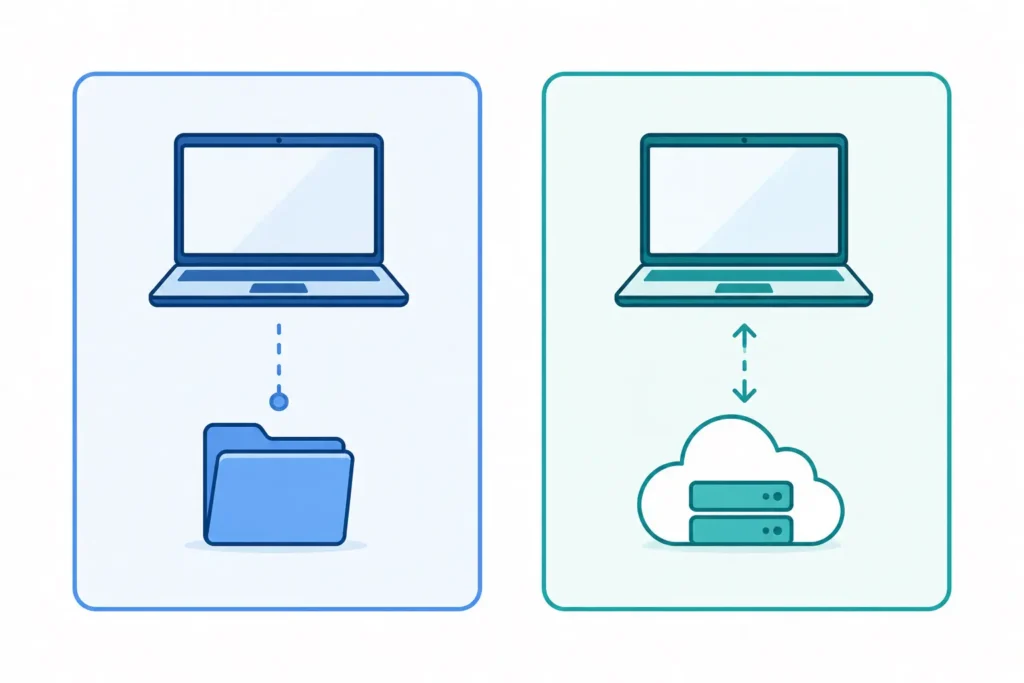
PST and OST files are often confused because they look similar and Outlook handles both without much visible distinction — but they serve different purposes.
| PST | OST | |
|---|---|---|
| Full name | Personal Storage Table | Offline Storage Table |
| Storage location | Local device only | Local device, but mirrors a server mailbox |
| Sync behavior | Not synced — it’s the only copy | Continuously synced with Exchange/Microsoft 365 |
| Typical account type | POP3 accounts, manual archives, exports | Exchange, Microsoft 365, IMAP accounts |
| Who it’s for | Individual users managing their own local archive | Organizations running centrally managed mailboxes |
| Corruption risk | Higher — no server copy to fall back on if the file corrupts | Lower — file is disposable and can be rebuilt from the server |
| Size limit (modern Outlook) | Up to 50 GB (Unicode format) | Up to 50 GB, but capped by server-side mailbox quota |
How Outlook decides between PST and OST
The decision isn’t something you configure directly — it follows from the type of email account you set up:
- POP3 accounts almost always use a PST file, because POP3 has no concept of a server-side mailbox to sync against. The PST is the mailbox.
- Exchange, Microsoft 365, and IMAP accounts use an OST file by default. Outlook keeps a local, offline-accessible copy of your server mailbox in the OST, and quietly syncs changes in both directions whenever you’re online.
This is why a PST file “IS” the data — delete it and it’s gone unless backed up — while an OST file can be safely deleted and Outlook will simply rebuild it from the server the next time it connects.
PST file size limits by Outlook version {#size-limits}
| Outlook version | PST format | Maximum PST size |
|---|---|---|
| Outlook 97 – 2002 | ANSI | 2 GB |
| Outlook 2003 – 2007 | Unicode | 20 GB (default, configurable) |
| Outlook 2010 and later | Unicode | 50 GB (default, configurable up to larger limits via registry) |
| Outlook 365 (current) | Unicode | 50 GB (default) |
In practice, most IT admins start seeing performance issues — slow search, laggy folder switching, longer backup windows — when a PST crosses somewhere around 15–20 GB, well before it hits the official 50 GB ceiling. The size limit is a hard technical wall; the usable limit is usually lower and depends on your disk speed and how the file is indexed.
Where PST files are stored {#where-stored}
By default, Windows tucks PST files away in a folder most users never browse to manually. Here’s how to find yours:
- Open File Explorer and paste this into the address bar (adjust for your Windows username):
C:\Users\[YourUsername]\Documents\Outlook Files - If it’s not there, check the older default location used by some Outlook versions:
C:\Users\[YourUsername]\AppData\Local\Microsoft\Outlook - From inside Outlook, you can also confirm the exact path: go to File > Account Settings > Account Settings, click the Data Files tab, select the file, and click Open File Location.
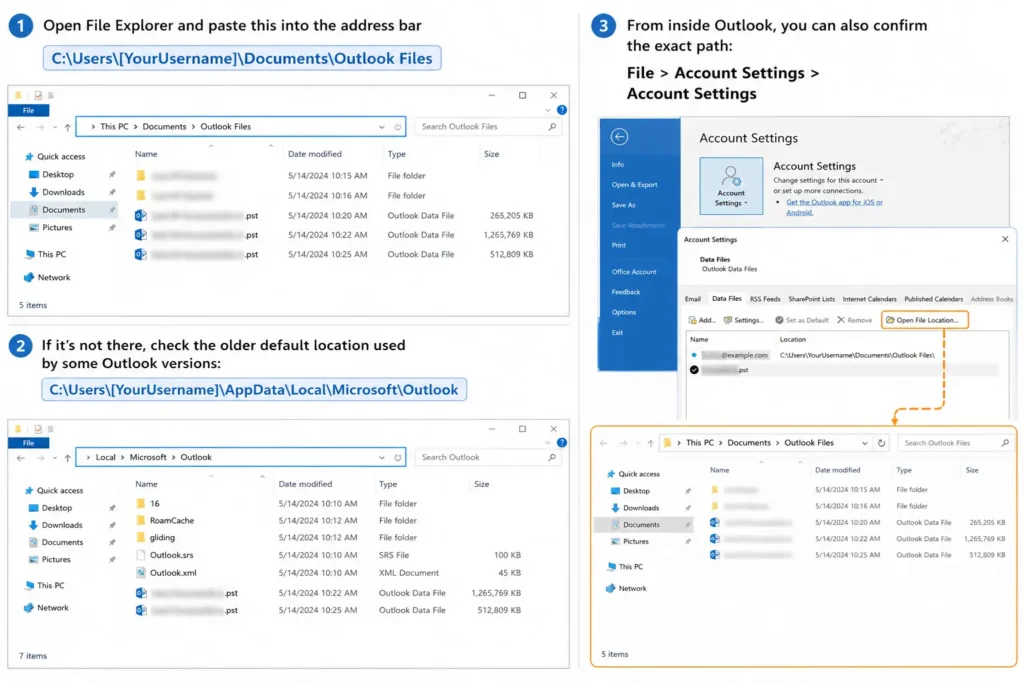
Note: If you’ve customized the save location during setup, or your organization enforces a policy path, your file may live somewhere entirely different — the Account Settings method above will always show the true location regardless of defaults.
Tip: If you’re planning to back up or move a PST file, always close Outlook first. Copying a PST file while Outlook has it open risks copying a partially written file.
PST file security risks
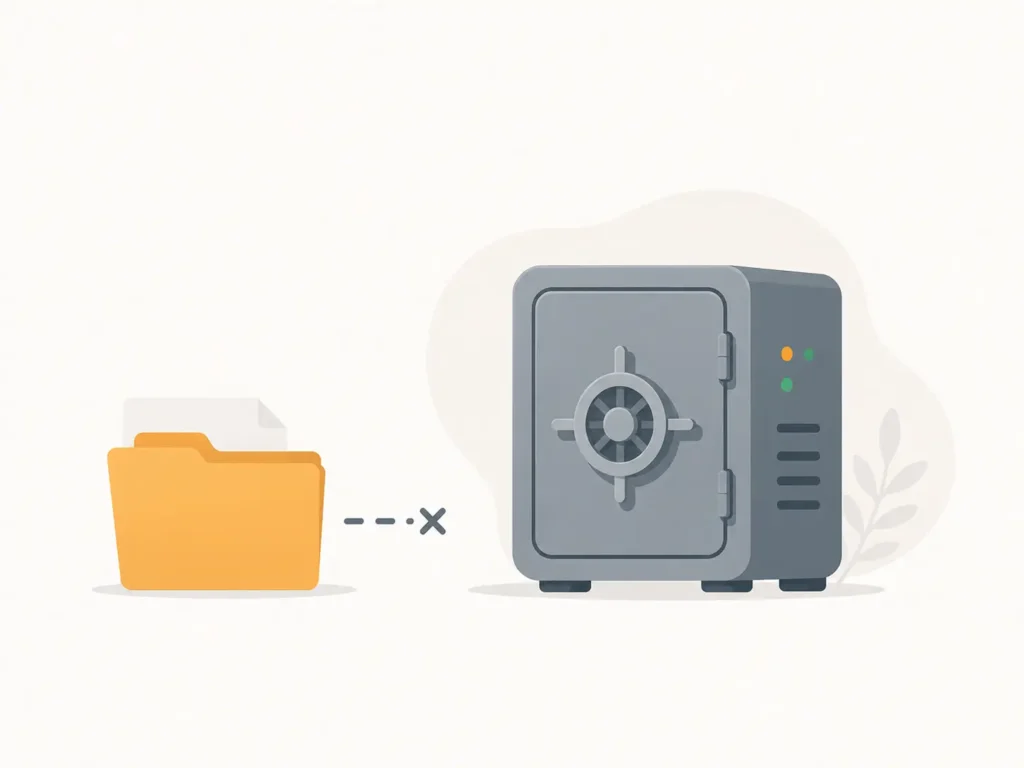
Because PST files sit locally and outside of centralized server management, they carry security and compliance risks that OST files simply don’t.
Data loss and corruption exposure. A PST file is often the only copy of that data. If the file corrupts, if the disk fails, or if it’s accidentally deleted without a backup, that data can be unrecoverable.
Orphaned PST files. An orphaned PST is one that’s no longer connected to an active Outlook profile — often left behind after a laptop reassignment, an employee offboarding, or an old backup that was never cleaned up. These files tend to accumulate quietly on shared drives and file servers, and because they’re disconnected from any account, they’re easy for IT and security teams to lose track of entirely.
E-discovery and legal/compliance implications. For organizations subject to litigation holds, regulatory retention rules, or industry compliance standards, orphaned or unmanaged PST files are a genuine liability. A PST sitting on someone’s laptop or an old file share falls outside centralized retention policies, which means it may contain data that should have been deleted under a retention schedule — or data that should have been preserved and wasn’t, because no one knew the file existed.
Password protection is weaker than it looks. Outlook lets you set a password on a PST file, but it’s worth being direct about this: PST password protection is not strong encryption. Forensic and data-recovery tools can bypass PST passwords without much difficulty. If you’re protecting genuinely sensitive data, a PST password should be treated as a speed bump, not a security control — full-disk encryption or a proper DLP solution is the actual safeguard.
How to repair a corrupted PST file
PST corruption usually shows up as Outlook crashing on launch, folders that won’t open, or an outright “file cannot be accessed” error. Here’s how to fix it.
Using the Inbox Repair Tool (ScanPST)
Microsoft ships a built-in repair utility called ScanPST.exe, officially known as the Inbox Repair Tool. It’s the first thing to try for any corrupted PST.
- Close Outlook completely.
- Locate ScanPST.exe. Its path depends on your Outlook version and whether it’s 32-bit or 64-bit — commonly under
C:\Program Files\Microsoft Office\root\OfficeXX\SCANPST.EXE. You can also search for “SCANPST” in the Windows Start menu. - Run the tool, browse to your PST file, and click Start to scan it.
- Review the scan results. If errors are found, click Repair.
- Reopen Outlook and confirm your data is intact.
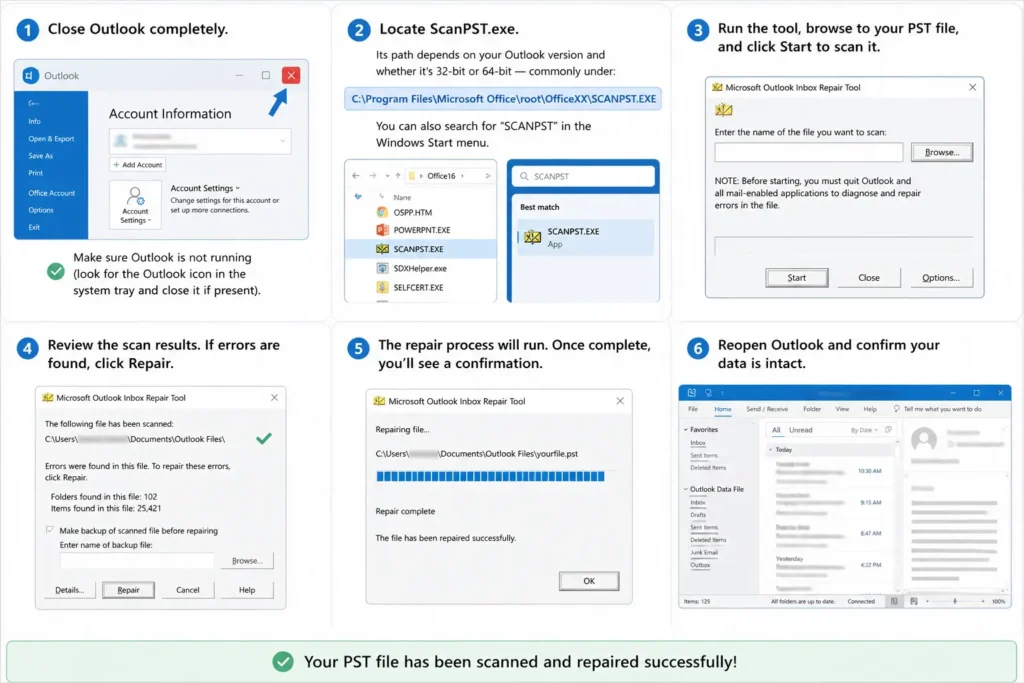
Note: ScanPST creates a backup of the original file before repairing (by default with a
.bakextension), but it’s still worth making your own copy of the PST before running the tool, especially for large or important files.
Tip: If ScanPST reports that it can’t fully repair the file, or if data is still missing afterward, that’s usually a sign of more serious corruption — at that point, a dedicated PST recovery tool built for deeper structural repair (rather than the lighter validation ScanPST performs) may be worth trying before assuming the data is unrecoverable. For the official Inbox Repair Tool documentation, see Microsoft’s support page.
Online and browser-based PST repair tools
Alongside desktop utilities, a newer category of browser-based PST repair tools has emerged. These let you upload a PST file (or in some cases run repair logic without a full upload) and get a repaired file back without installing anything locally.
The tradeoffs are straightforward:
- Pros: no installation, useful when you’re on a locked-down machine, often faster to get started.
- Cons: uploading a PST file to a third-party service means handing over potentially sensitive mailbox data — worth real scrutiny for any business or regulated environment before you use one.
For personal, low-sensitivity files, an online tool can be a reasonable shortcut. For anything containing business communications, financial data, or regulated information, a local tool — starting with ScanPST — is the safer first step.
How to compact a PST file
Even a healthy PST file grows less efficient over time as items are deleted — deleting an email doesn’t actually shrink the file, it just marks that space as reusable. Compacting reclaims it.
- In Outlook, go to File > Account Settings > Account Settings, then the Data Files
- Select the PST file and click Settings.
- Click Compact Now.
- Outlook will process the file in the background — for large files this can take a while, so avoid closing Outlook mid-process.
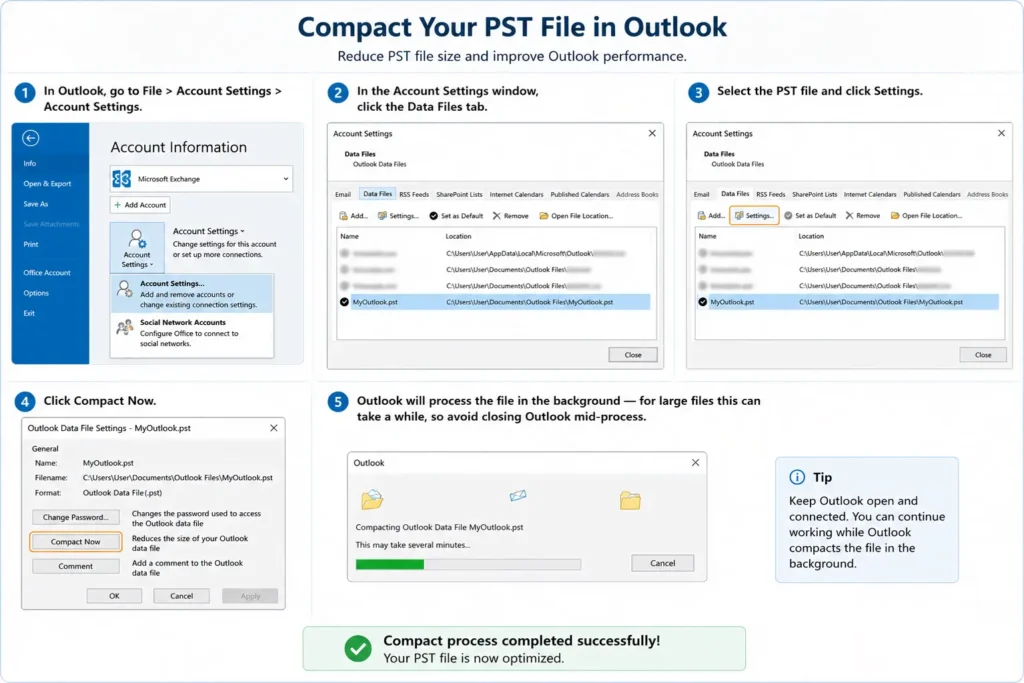
Tip: Compacting is worth doing periodically (quarterly is reasonable for an active mailbox) rather than only when a file feels sluggish — it’s a low-effort way to keep a PST from creeping toward its size ceiling.
PST migration and cloud moves

When an organization moves from a POP3 or on-premises setup to Microsoft 365, existing PST files don’t just disappear — but they also don’t automatically become part of the new cloud mailbox. They need to be handled deliberately.
What typically happens:
- PST files remain on local machines unless someone actively imports them.
- IT teams commonly use Microsoft’s Import/Export wizard, PowerShell-based bulk import tools, or third-party migration utilities to move PST contents into user mailboxes hosted on Microsoft 365.
- Once imported, that data becomes subject to the organization’s centralized retention, backup, and compliance policies — which is often the actual point of the migration, beyond convenience.
Common pitfalls:
- Importing very large PST files can hit Exchange Online mailbox size quotas, even if the PST itself is under 50 GB.
- Corrupted PST files (see the repair section above) should be fixed before migration — importing a partially corrupt file can produce incomplete or duplicated data.
- Orphaned PST files, discussed in the security section, are easy to miss during a migration project since no active account points to them.
Frequently asked questions
Can I import a PST into Gmail or Google Workspace?
Not directly. PST is a Microsoft-specific format that Gmail doesn’t read natively. The common workaround is to first import the PST into an Outlook profile connected to a Google Workspace account (via the Google Workspace Sync tool for Outlook) or to convert the PST to a format Gmail can import, such as MBOX, using a dedicated conversion tool.
What is the maximum size of a PST file in Outlook 365?
50 GB by default, using the Unicode PST format. This is a soft technical ceiling — in practice, performance issues often appear well before a file reaches that size.
Does deleting a PST file delete my emails?
If that PST is your only copy of the data — which is typically the case for POP3 accounts — yes, deleting it deletes that data permanently unless you have a backup. If the PST was created as an archive or export from an Exchange/Microsoft 365 account, the original data usually still exists on the server.
How do I open a PST file without Outlook?
Outlook is required to open a PST file natively. Some third-party PST viewer tools exist that can read PST contents without a full Outlook installation, which can be useful for quick access or forensic review, but they vary widely in reliability and feature support.
Can PST passwords be recovered or bypassed?
Yes. PST password protection uses weak encryption by modern standards, and forensic and data-recovery tools can bypass it without significant difficulty. Treat a PST password as a basic access deterrent, not a real security control.
What causes a PST file to become corrupted?
Common causes include improper Outlook shutdowns, network interruptions while a PST is stored on a network drive, hitting size limits, disk errors, and antivirus software interfering with the file while Outlook has it open.