

Quick fix summary
If Excel just showed you the “We found a problem with some content Excel” error, here’s the fastest path back into your file:
- Open the file, then choose Open and Repair from Excel’s Open dialog
- If that doesn’t clear it, switch calculation mode to Manual and reopen the file
- Copy the workbook’s contents into a brand new file
- Check Data > Edit Links for a broken external reference
- If the file is still unreadable, use a dedicated Excel repair tool as a last resort
The full breakdown below covers why this happens and walks through each fix in order, in case the quick list doesn’t clear it up on the first try.
Several Microsoft Excel users, on different forums, have reported the same error when opening an .xlsx or .xlsm file. Here’s a sample of what they’ve described:
“I encountered the ‘We found a problem with some content Excel <nnnn>.xlsx. Do you want us to try and recover as much as we can’ error. When I clicked Yes, I got another error message, ‘The file is corrupt and cannot be opened.’ I clicked off all of the protected view settings in the Trust Center Settings and clicked ‘Unblock‘ from the file properties in Windows Explorer, but continue to get the error. Anybody has clues which settings to check?”
“Recently, I am having an issue when opening an Excel file. When I tried to open the file, I got an error message that says ‘We found a problem with some content Excel in <workbook name>. Do you want us to try to recover as much as we can.’ The file always recovers. Once Excel has fixed the error and the file is saved, the error message goes away but comes back within a day or so. I also try to open the file in safe mode, as administrator but nothing works.”
“As a side project at work, I create and maintain a large Excel workbook to track various data points for research purposes… I put the updated workbook on the network drive. I never had an issue. But recently… I got the dreaded message, ‘We found a problem with some content Excel in 2022-05-17 MSTU Data.xlsx.’ … The odd thing is that it worked perfectly when I opened it at home. Does anyone have any idea why it is working on my personal computer but not on the work computer?”
More recently, a user on the Microsoft Tech Community described the error appearing specifically on macro-enabled (.xlsm) files stored in OneDrive, an issue that started around April 15, 2026 and kept happening even without editing the file further. That points to a cloud-sync conflict as a specific trigger, on top of the more familiar causes below.
What does “we found a problem with some content Excel” mean?
Excel opens .xlsx and .xlsm files by unzipping and reading an XML package behind the scenes, formulas, formatting rules, styles, and any embedded objects all live inside that package. If Excel’s parser hits something it can’t cleanly read, a malformed tag, or a reference to a sheet or object that no longer lines up, it doesn’t just fail outright. Instead, it flags the specific part it couldn’t validate and offers to strip that piece out and recover everything else. That’s why clicking “Yes” sometimes gets you back into the file with only a chart or a few cells missing, and why the same file can behave differently on two different computers: the corruption is often isolated to one small part of the package, not the whole document.
What causes the “we found a problem with some content Excel” error
A handful of different problems can trigger this same message, which is part of why one fix doesn’t work for everyone:
- File corruption from an improper save, an interrupted transfer, or a dropped network connection. This is the most common cause, and it’s the one behind the April 2026 OneDrive/.xlsm case above, syncing conflicts on macro-enabled files can leave the saved package in a state Excel can’t fully validate.
- Protected View blocking a file Excel considers untrusted, typically anything downloaded from the internet or received as an email attachment.
- Broken or outdated external links. If your workbook pulls data from another file that has since moved or been renamed, Excel may also show the related message “we couldn’t get updated values from a linked workbook.”
- Incompatible or malformed data types sitting in a cell, often left over from an import out of another system.
- A formula whose text argument runs past Excel’s 255-character limit. This applies to a single text argument inside a formula, or a legacy linked text box, not to a cell’s overall content (cells can hold up to 32,767 characters), so it shows up in specific formula patterns rather than with long text typed directly into a cell.
- Circular references or deeply nested, overly complex formulas that Excel struggles to fully resolve.
- A version mismatch, a file built in a newer version of Excel opened in a much older one.
- A manually changed file extension, for example renaming .xlsx to .xls without actually converting the file.
- A faulty or incompatible third-party add-in interfering with how Excel loads the file.
- Malware interference or a corrupted file header, though this is less common than simple save or sync corruption.
How to fix the “we found a problem with some content Excel” error
Method 1 — Open and Repair (try this first)
1. In Excel, go to File > Open.
2. Click Browse and locate the affected file.
3. Instead of double-clicking it, click the small dropdown arrow next to the Open button and choose Open and Repair.
4. Let Excel attempt the repair, then save the recovered file under a new name so you don’t overwrite the original.
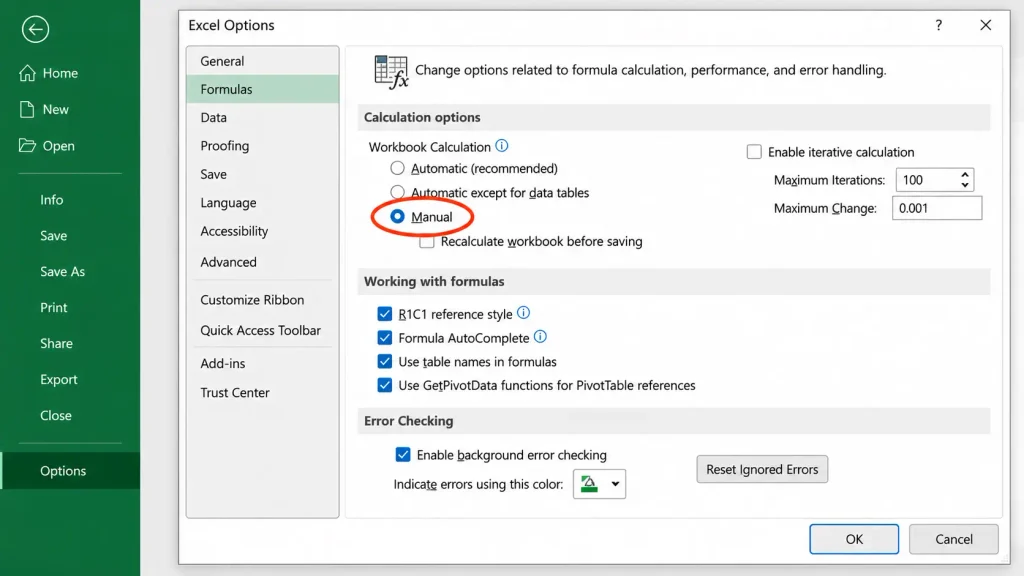
Method 2 — Switch calculation to Manual
1. Open a new, blank workbook first, not the corrupted one.
2. Go to File > Options > Formulas.
3. Under Calculation options, change from Automatic to Manual, then click OK.
4. Now open the affected file through File > Open. This stops Excel recalculating every formula the moment the file loads, which is often what causes it to hang or throw the error in the first place.
Method 3 — Copy the content into a new workbook
1. Open the problem file in read-only mode if it lets you (right-click the file in File Explorer, Properties, tick Read-only).
2. Select and copy the data you need.
3. Open a new workbook and paste the content in.
4. Save the new file under a different name. This method won’t carry over macros or complex embedded objects, only the visible data and formulas.
Method 4 — Fix or disable external links
1. Open the file (or attempt to) and go to Data > Edit Links.
2. If a link shows as broken or points to a file that’s moved, select it and click Change Source to repoint it to the correct location.
3. If you don’t need the link at all, select it and click Break Link instead, which converts the formula to its last known static value.
This is also the fix if you see the related message “we couldn’t get updated values from a linked workbook,” since both point to the same underlying issue with an external reference.
Method 5 — Change the file format
1. If the file was created in a newer version of Excel and is being opened in an older one, try File > Save As and choose a compatible format.
2. Reopen the newly saved file to see if the error clears.
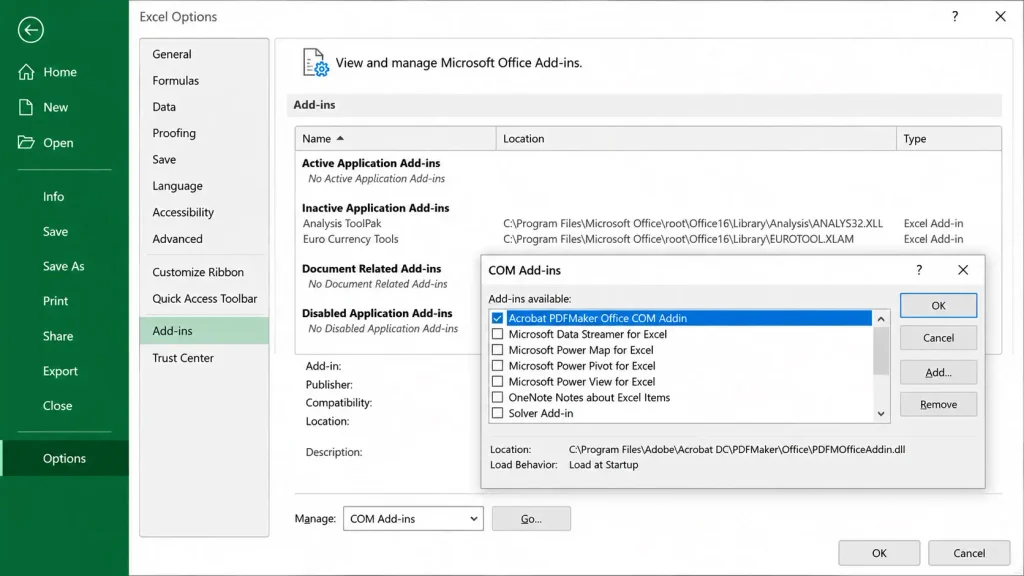
Method 6 — Start Excel in Safe Mode to isolate an add-in
1. Press Windows + R, type excel /safe, and press Enter.
2. Go to File > Options > Add-ins, then at the bottom choose COM Add-ins and click Go.
3. Uncheck all add-ins and restart Excel normally.
4. Re-enable them one at a time, reopening the affected file after each one, until the error comes back. That’s your culprit.
This step tells you which add-in is interfering, it doesn’t repair the file on its own, so you may still need one of the other methods afterward.
Method 7 — Open the file in an alternate program as a workaround
1. If you have Google Sheets or WPS Office available, try opening the file there instead.
2. Both use a different file parser than Excel, so a file with a malformed XML tag or a broken link that Excel refuses to open may load without complaint.
Treat this as a way to get your data back, not a fix for the original file. Saving back out to .xlsx from Google Sheets in particular can change formatting or drop Excel-specific features like certain macros or chart types.
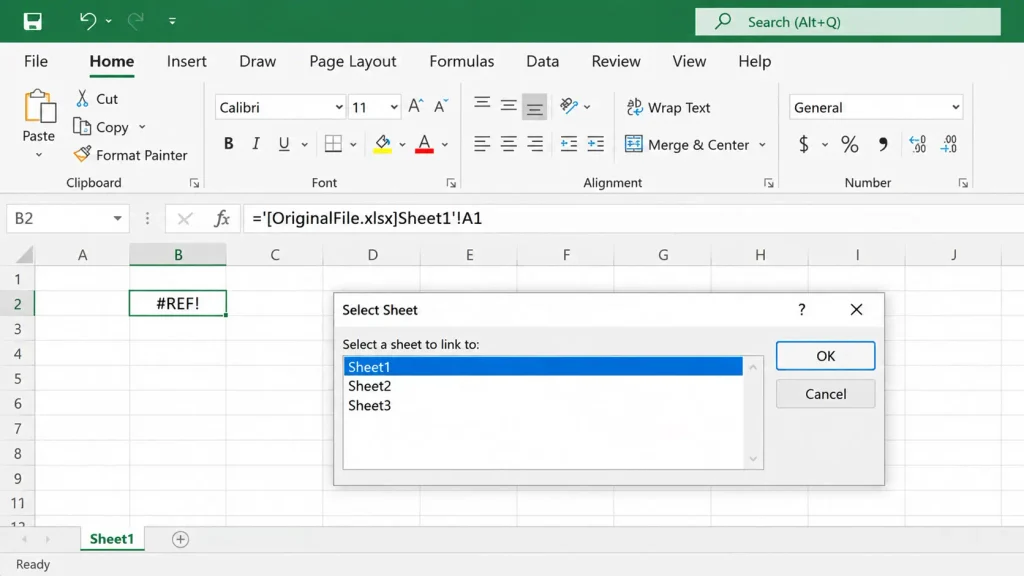
Method 8 — Extract data with an external reference formula
1. In a new, blank workbook, click into a cell and type a formula that references a cell in the damaged file directly, for example ='[OriginalFile.xlsx]Sheet1′!A1.
2. When prompted, select the damaged file and the correct sheet.
3. Copy that cell, then use Paste Special > Values to convert it into a static value in your new workbook.
4. Repeat or drag across the range you need. This won’t recover formulas or calculated results, only the values, but it can pull data out of a file that won’t open any other way.
Method 9 — Use a dedicated Excel repair tool
If none of the manual methods get you back into the file, or the file opens but with visibly corrupted formatting, formulas, or objects, a dedicated repair tool such as Stellar Repair for Excel is built specifically to parse and rebuild damaged Excel files, including cases the built-in Open and Repair feature can’t handle.
Which fix should you try first?
If you’re not sure where to start, match your situation to the list below:
- The file opens but shows a repair prompt every time → Method 1, Open and Repair
- The file freezes or hangs while opening → Method 2, switch to manual calculation
- The error message specifically mentions a linked workbook → Method 4, fix external links
- The file came from an email attachment or a download → check your Protected View settings first, then try Method 1
- Nothing above has worked → Method 9, a dedicated repair tool
How to prevent this error in the future
A few habits go a long way toward avoiding this error altogether:
- Keep regular backups and make sure AutoRecover is turned on (File > Options > Save).
- Review external links periodically instead of letting them go stale, especially if you regularly move or rename source files.
- Avoid closing Excel abruptly, or letting your network connection drop, while a workbook is still open and syncing, exactly what triggered the OneDrive/.xlsm case described earlier.
- Keep antivirus software up to date, but whitelist the folders you actively work in so it isn’t quarantining or scanning files mid-save.
- For very large, formula-heavy workbooks, consider working in manual calculation mode by default rather than only switching to it when something breaks.
- Make sure you’re running a licensed copy of Microsoft Office. Pirated or cracked installers are a real, documented source of file corruption.
Frequently asked questions
Does this error mean my file is permanently damaged?
Not necessarily. In most cases, Excel’s own recovery process, or one of the manual methods above, gets your data back intact. Severe corruption can sometimes mean losing a chart, a macro, or a small section of formatting, but a full, unrecoverable loss is uncommon.
What does “we couldn’t get updated values from a linked workbook” mean?
It’s a closely related message tied to the same underlying cause, a broken or unreachable external link. Fixing it follows the same steps as Method 4 above: locate the link under Data > Edit Links, then repoint or break it.
Why does this happen on one computer but not another?
It usually comes down to something specific to that machine or file location, an incompatible add-in, a different Excel version, or a sync conflict with a cloud storage folder like OneDrive, rather than the file itself being universally broken.
Is this different in Excel 2016 versus Microsoft 365?
The error and its underlying causes are broadly consistent across modern Excel versions. What can differ is which specific cause is more likely, version-mismatch issues, for instance, show up more with older installs opening files built in a newer Excel.
What if none of the manual fixes work?
At that point the corruption is likely deeper than a simple broken link or calculation hang, and a dedicated Excel repair tool is the more reliable next step.
Final thoughts
Most of the time, this error is more annoying than dangerous, Excel’s own repair process or one of the methods above will get you back into your file within a few minutes. If you’re dealing with a workbook that’s still showing corrupted formulas, missing objects, or formatting damage even after trying the steps here, Stellar Repair for Excel is built to handle exactly that kind of deeper corruption.
If you’re running into related Excel file errors, see also our guides on the file couldn’t open in Protected View and Excel found unreadable content.

